

Introduction
Welcome to this simple and fun guide on building a Bluetooth home automation system using ESP32. With this project, you can control your home appliances like lights or fans using your smartphone over Bluetooth. No internet is needed, just your phone and the ESP32 board.
We’re using the ESP32 because it’s affordable, powerful, and already has Bluetooth and Wi-Fi built-in. This means you don’t need any extra modules like the HC-05. It’s perfect for small home automation projects.
This is a great DIY project for beginners and hobbyists who want to learn how to control devices wirelessly. You’ll also get a chance to learn basic coding and how to work with relays.
To make your project look clean and professional, we’ll show you how to design your own PCB (Printed Circuit Board). Thanks to our sponsor PCBWay, you can easily turn your breadboard circuit into a real PCB.
Even better, PCBWay has a KiCad Plugin that lets you generate and order your PCB files directly from the KiCad software. That means you don’t have to manually export or upload anything. Just design your circuit, click, and order your PCB!
👉 Want a reliable PCB for this project? Get one made with PCBWay in just a few clicks using their KiCad plugin!
You Might Also Like Bluetooth Home Automation System Using Arduino & HC-05
What is a Bluetooth Home Automation System?
A Bluetooth home automation system lets you control your electrical devices like fans, lights, or appliances using your smartphone and a Bluetooth-enabled microcontroller like the ESP32. Instead of using the internet or a router, the system uses short-range Bluetooth signals to send commands directly to the device.
When your phone connects to the ESP32 via Bluetooth, it can send simple commands (like ‘A’ to turn a light ON or ‘a’ to turn it OFF). The ESP32 then switches the connected device through a relay.
Why Choose Bluetooth Over Wi-Fi?
While Wi-Fi automation systems are more common, Bluetooth has some great advantages:
- Works Offline: You don’t need a Wi-Fi connection or router. It works even if there’s no internet.
- Saves Power: Bluetooth uses less power than Wi-Fi, which is helpful for battery-powered systems.
- Simple Setup: No need to configure a network. Just pair and control.
- Faster Local Response: Commands are sent directly, so it reacts instantly.
This makes Bluetooth a smart choice for small spaces or when you don’t want to rely on internet connectivity.
Ideal Use Cases
- Bedrooms or Study Rooms: Control lights or fans without getting out of bed.
- Offline Areas: Works well in places without Wi-Fi, like garages or farm sheds.
- Budget DIY Projects: Cost-effective solution for smart control.
- Children or Elderly Use: Simple app-based control for accessibility.
Now that you know what Bluetooth home automation is and why ESP32 is perfect for it, let’s move on to what components you’ll need for this project.
Why Use ESP32 for Bluetooth Home Automation?
There are many reasons why the ESP32 is a smart choice for building a Bluetooth home automation system:
- Built-in Bluetooth and Wi-Fi: No need for extra modules. The ESP32 comes with both, making it easy to connect and control.
- Low Cost, High Performance: It’s powerful yet affordable, perfect for DIY electronics projects.
- Multiple GPIO Pins: You can control many devices at once. Great for switching multiple relays or sensors.
- Easy to Program: You can use the Arduino IDE, which is beginner-friendly and has lots of community support.
ESP32 saves time, space, and money—making your smart home project faster and easier to build.
Required Components
- ESP32 Dev Board [https://amzn.to/43Mkhz7]
- 4-Channel Relay Module [https://amzn.to/4wUw8IV]
- 4x Push Button [https://amzn.to/4vcqWOS]
- Breadboard & Jumper Wires [https://amzn.to/3U17ZOT]
- 5 Volt Power Supply [https://amzn.to/4nRPmee]
Circuit Diagram

Let’s take a closer look at the wiring and how to create a neat, reliable PCB.
In this project, the ESP32 connects to a 4-channel relay module, which controls home appliances. Each relay is triggered by a different GPIO pin. The circuit also includes basic components like resistors, LEDs, and flyback diodes for relay protection.
ESP32 Source Code
/*
 * =================================================================================
 * PROJECT NAME: ESP32 8-Channel Smart Home Automation (Bluetooth + Manual Switches)
 * VERSION:      1.0.0
 * DESCRIPTION:  Professional firmware for controlling up to 8 relay channels via
 *               a Bluetooth terminal app or physical wall switches.
 *               Features hardware-safe GPIO selection and robust software debouncing.
 * =================================================================================
 */

#include "BluetoothSerial.h"

// Check if Bluetooth is properly enabled in the ESP32 board manager
#if !defined(CONFIG_BT_ENABLED) || !defined(CONFIG_BLUEDROID_ENABLED)
#error Bluetooth is not enabled! Please update your ESP32 board settings.
#endif

BluetoothSerial SerialBT;

// =================================================================================
// ⚙️ CONFIGURATION SECTION
// =================================================================================

// General Settings
const int NUM_CHANNELS = 8;
const String BT_DEVICE_NAME = "ESP32-HomeAuto"; // Name that appears on phone
const int DEBOUNCE_DELAY = 50;                  // Milliseconds to wait for switch bounce

// Hardware Settings
// Safe output pins: 23, 22, 21, 19, 25, 26, 27, 14
const int relayPins[NUM_CHANNELS] = {23, 22, 21, 19, 25, 26, 27, 14};

// Safe input pins (supports INPUT_PULLUP): 18, 5, 17, 16, 32, 33, 13, 4
const int switchPins[NUM_CHANNELS] = {18, 5, 17, 16, 32, 33, 13, 4};

// Relay Logic Configuration
// Most standard 8-channel relay boards are Active-LOW (LOW = ON, HIGH = OFF)
const int RELAY_ON = LOW;
const int RELAY_OFF = HIGH;

// State Tracking Array (Tracks if each appliance is currently logically ON or OFF)
bool relayState[NUM_CHANNELS] = {false, false, false, false, false, false, false, false};

// =================================================================================
// 🚀 SETUP
// =================================================================================

void setup() {
  // Initialize Serial Monitor for USB debugging
  Serial.begin(115200);
  Serial.println("\n--- ESP32 Smart Home System Starting ---");

  // Initialize Bluetooth
  SerialBT.begin(BT_DEVICE_NAME);
  Serial.println("Bluetooth Started. Ready to pair as: " + BT_DEVICE_NAME);

  // Configure Pins
  for (int i = 0; i < NUM_CHANNELS; i++) {
    pinMode(relayPins[i], OUTPUT);
    pinMode(switchPins[i], INPUT_PULLUP); // Enables internal pull-up resistor

    // Set default state to OFF to prevent relays triggering during boot
    digitalWrite(relayPins[i], RELAY_OFF);
  }

  Serial.println("Hardware initialized successfully. Waiting for commands...");
}

// =================================================================================
// 🔄 MAIN LOOP
// =================================================================================

void loop() {
  handleBluetoothCommands();
  handleManualSwitches();
}

// =================================================================================
// 🛠️ CORE FUNCTIONS
// =================================================================================

void handleBluetoothCommands() {
  if (SerialBT.available()) {
    char cmd = SerialBT.read();
    int channelIndex = -1;

    // Map incoming characters to relay array index (0 to 7)
    switch (cmd) {
      case 'A': case 'a': channelIndex = 0; break;
      case 'B': case 'b': channelIndex = 1; break;
      case 'C': case 'c': channelIndex = 2; break;
      case 'D': case 'd': channelIndex = 3; break;
      case 'E': case 'e': channelIndex = 4; break;
      case 'F': case 'f': channelIndex = 5; break;
      case 'G': case 'g': channelIndex = 6; break;
      case 'H': case 'h': channelIndex = 7; break;
      default: break; // Ignore invalid characters like line breaks
    }

    // If a valid command was received, toggle the corresponding relay
    if (channelIndex != -1) {
      toggleRelay(channelIndex, "Bluetooth App");
    }
  }
}

void handleManualSwitches() {
  for (int i = 0; i < NUM_CHANNELS; i++) {
    // Check if physical switch is pressed (reads LOW because of INPUT_PULLUP)
    if (digitalRead(switchPins[i]) == LOW) {
      delay(DEBOUNCE_DELAY); // Wait for switch bounce to settle

      // Confirm it is still pressed after delay
      if (digitalRead(switchPins[i]) == LOW) {
        toggleRelay(i, "Manual Switch");

        // Wait for the user to physically release the switch
        while (digitalRead(switchPins[i]) == LOW) {
          delay(10); // Yield to prevent Watchdog Timer (WDT) panic/crash
        }

        delay(DEBOUNCE_DELAY); // Debounce the release phase
      }
    }
  }
}

void toggleRelay(int index, String triggerSource) {
  // Invert the current logical state
  relayState[index] = !relayState[index];

  // Apply the new state to the hardware pin
  if (relayState[index]) {
    digitalWrite(relayPins[index], RELAY_ON);
  } else {
    digitalWrite(relayPins[index], RELAY_OFF);
  }

  // Generate a status message
  String statusMsg = "Channel " + String(index + 1) + " turned " +
                     (relayState[index] ? "ON" : "OFF") +
                     " (Trigger: " + triggerSource + ")";

  // Print to USB Serial (for developer debugging)
  Serial.println(statusMsg);

  // Send feedback to the Bluetooth App (for the user)
  SerialBT.println(statusMsg);
}Use Official ESP32 Board
Step 1: Open Preferences
- Open Arduino IDE.
- Go to File > Preferences (or press
Ctrl + ,). - Find the field: “Additional Board Manager URLs”.
Step 2: Add ESP32 URL
Paste this URL into the field:
https://raw.githubusercontent.com/espressif/arduino-esp32/gh-pages/package_esp32_index.json
If there’s already something there, separate multiple URLs with a comma.
Click OK.
Step 3: Open Boards Manager
- Go to Tools > Board > Boards Manager.
- In the search box, type:
esp32 - Look for: esp32 by Espressif Systems
- Click Install (or Update if already installed).
Installation may take a few minutes depending on your internet speed.
Step 4: Select Your ESP32 Board
After installation:
- Go to Tools > Board
- Scroll down and select your board:
- For most boards: “ESP32 Dev Module”
Step 5: Connect Your Board
- Plug in your ESP32 via USB.
- Go to Tools > Port and select the correct COM port (usually appears when board is connected).
- Set other options:
- Upload speed: 115200 or 921600 (default works fine)
- Flash Frequency: 80MHz
Troubleshoot Common Fixes
| Issue | Fix |
|---|---|
| Board not found in Tools > Board | Check if URL was added correctly, and try restarting Arduino IDE |
| Port not showing | Replug USB, install CP2102/CH340 drivers (depends on your ESP32) |
| Upload fails at 100% | Hold the BOOT button during upload and release when done |
How to Use This Code?
Once you’ve uploaded the code and powered your circuit, using your Bluetooth home automation system is easy. Here’s how to get started:
Step 1: Install a Bluetooth Switch App
Go to the Google Play Store and search for “Bluetooth Switch“
Install this apps to send commands from your smartphone to the ESP32.
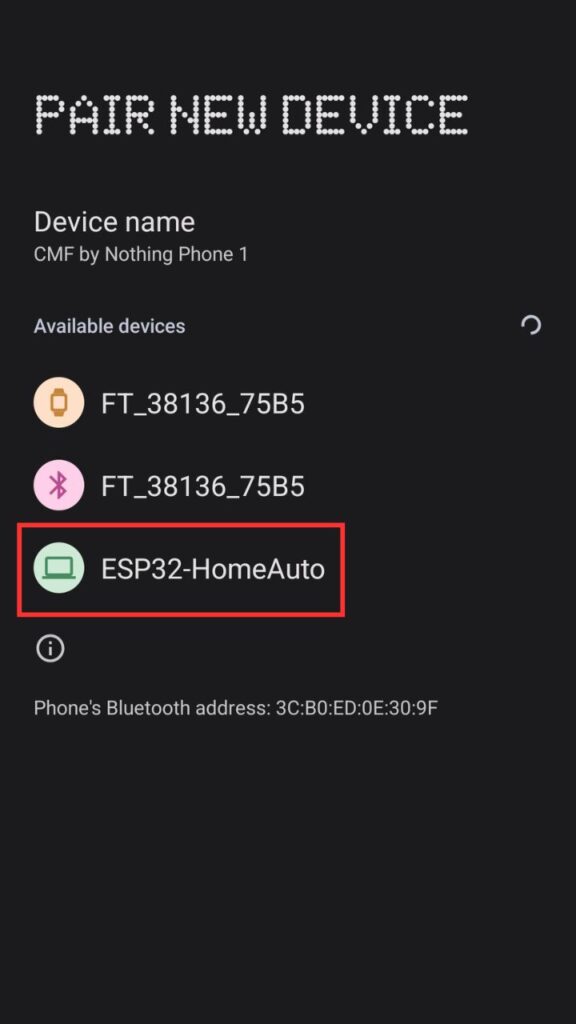
Step 2: Pair Your Phone with ESP32
- Turn on Bluetooth on your phone.
- Search for available devices.
- Select the device named ESP32_HomeAuto (or the name you set in code).
- Enter the pairing code if prompted (usually 1234 or 0000).
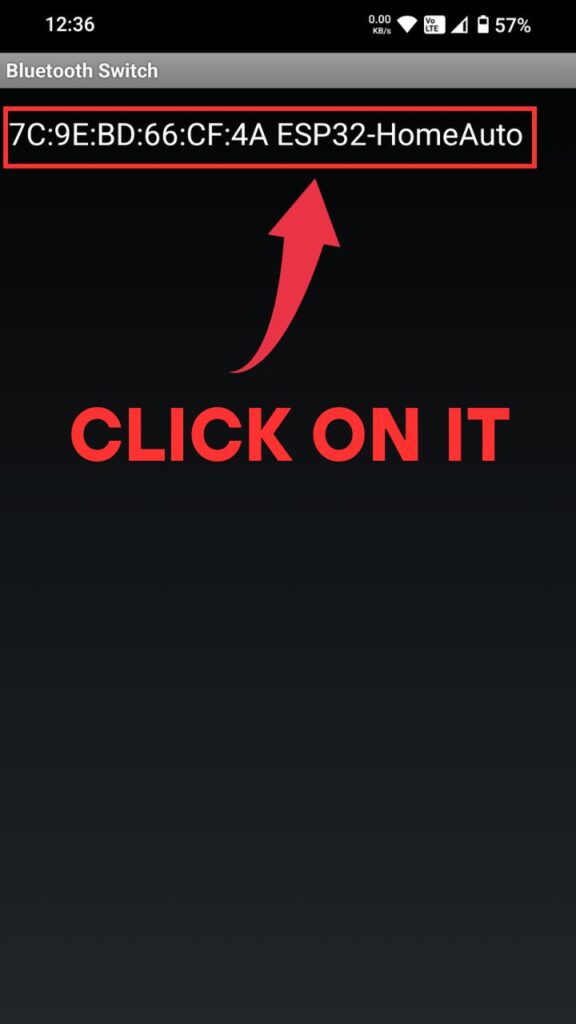
- Now open the Bluetooth Switch application click on “Click Here To Connect” button.
- Then select the device name as ESP32-HomeAuto.
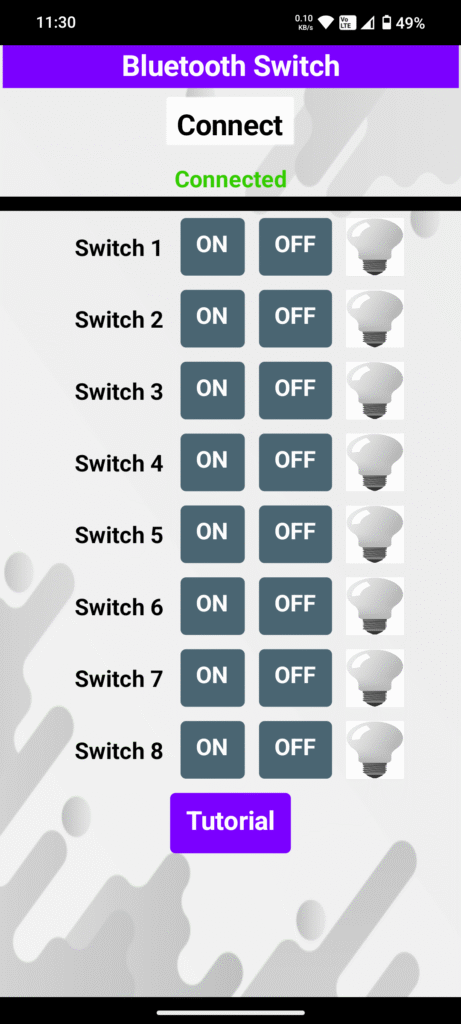
- After redirecting to main interface the connection status will be shown as Connected.
- Now you can turn On/Off switches accordingly.


Step 3: Send Commands to Control Appliances
Use the following character commands:
| Character | Action | Relay |
|---|---|---|
A | Turn ON Light 1 | 1 |
a | Turn OFF Light 1 | 1 |
B | Turn ON Light 2 | 2 |
b | Turn OFF Light 2 | 2 |
C | Turn ON Light 3 | 3 |
c | Turn OFF Light 3 | 3 |
D | Turn ON Light 4 | 4 |
d | Turn OFF Light 4 | 4 |
Example: Type “
A"and press send — Light 1 will turn ON. Type “a"to turn it OFF.
This gives you wireless control of your devices without needing internet or a router. Perfect for bedrooms, offline spaces, or DIY automation fans.
PCB Design
Using a PCB instead of jumper wires makes your project more reliable and professional. Breadboard connections can get loose over time and cause your circuit to stop working. But a PCB keeps everything fixed and tidy.
- ESP32 GPIO Pins → Relay IN1 to IN4
- Relay VCC & GND → 5V and GND
- Relay Outputs → AC appliances (like bulb, fan)
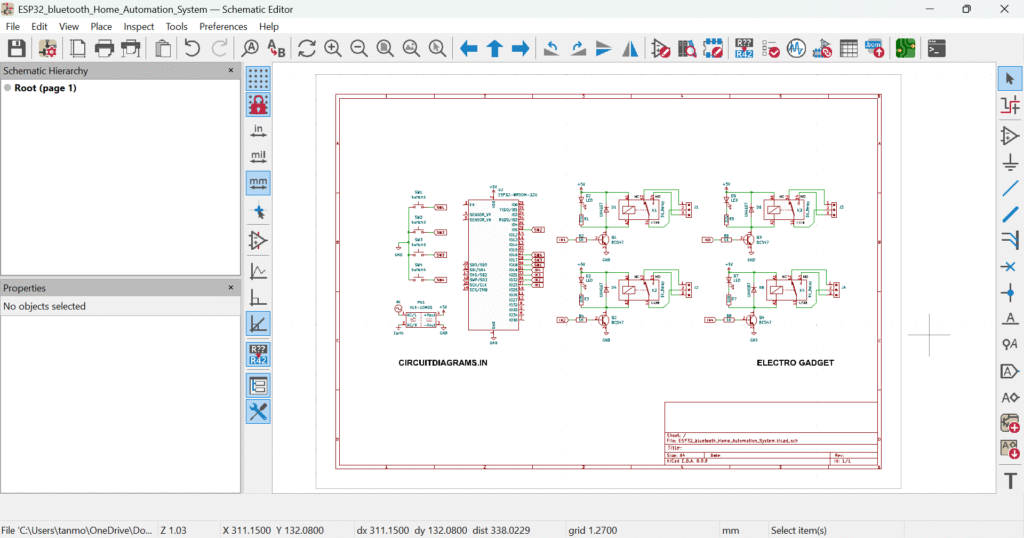
In this project, we created a custom PCB layout in KiCad that includes the ESP32, relay module, and connectors for powering appliances. It looks compact and fits perfectly in a small case.
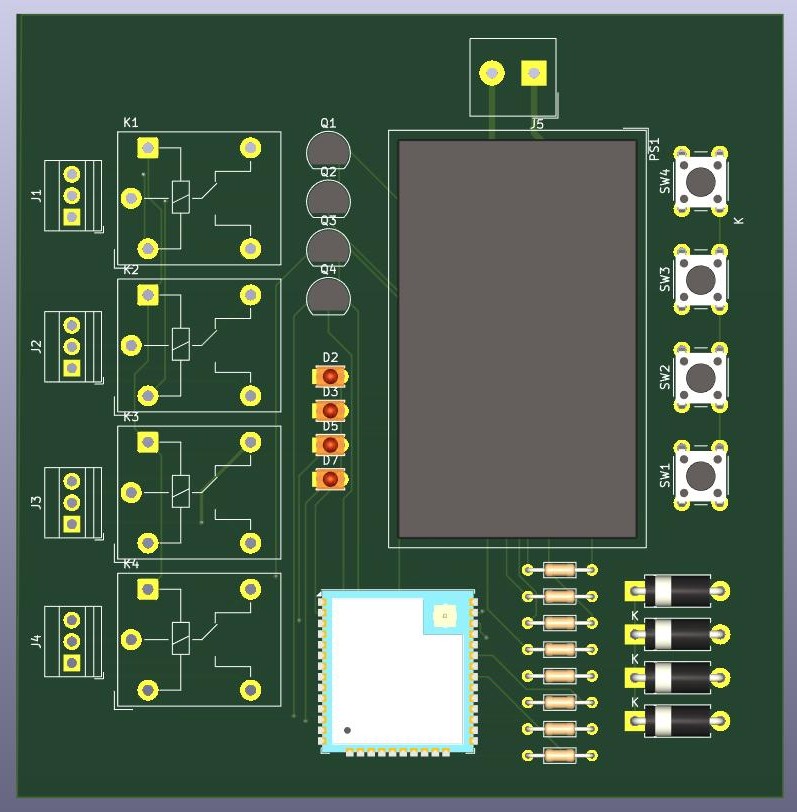
This layout helps avoid messy wiring and reduces the chance of short circuits or loose connections.
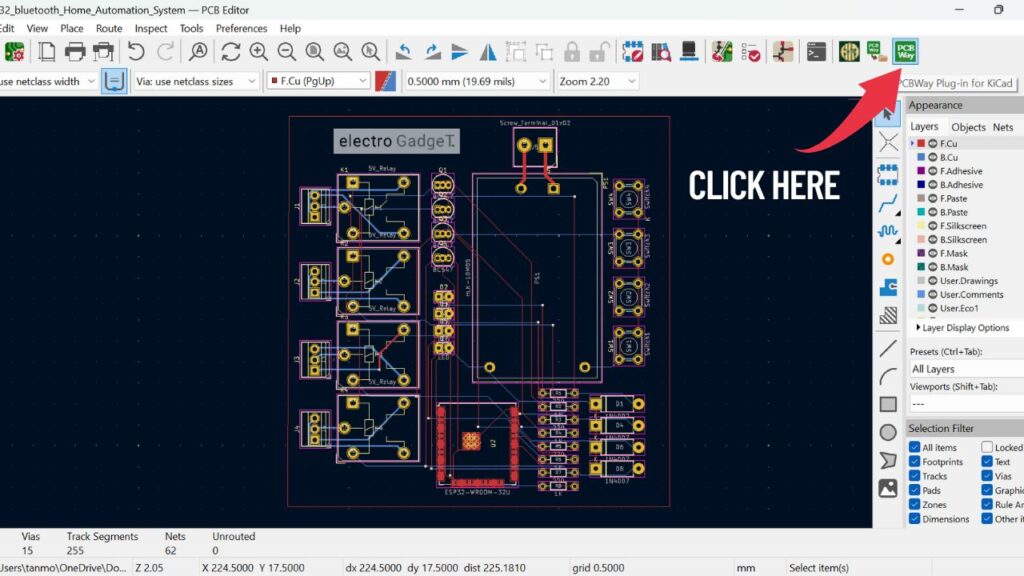
Thanks to the PCBWay KiCad Plugin, we didn’t need to export files manually. We just clicked “Generate Gerber & Order” directly from within KiCad. This saved time and avoided errors.
With the new PCBWay KiCad Plugin, you can directly generate Gerber files and place PCB orders within KiCad – no need to export files manually. Download the plugin from the KiCad Plugin Manager or PCBWay’s official site.
This makes PCB fabrication easier for beginners and professionals alike.
Ordering Your Custom PCB from PCBWay
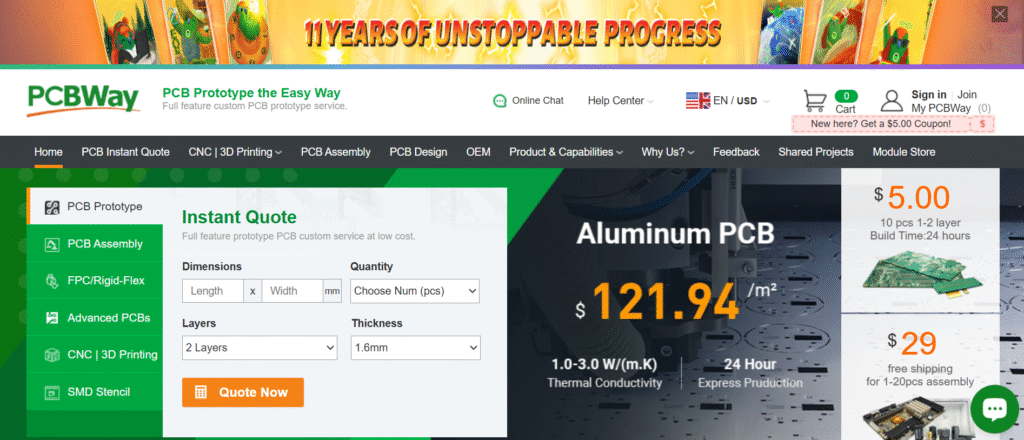
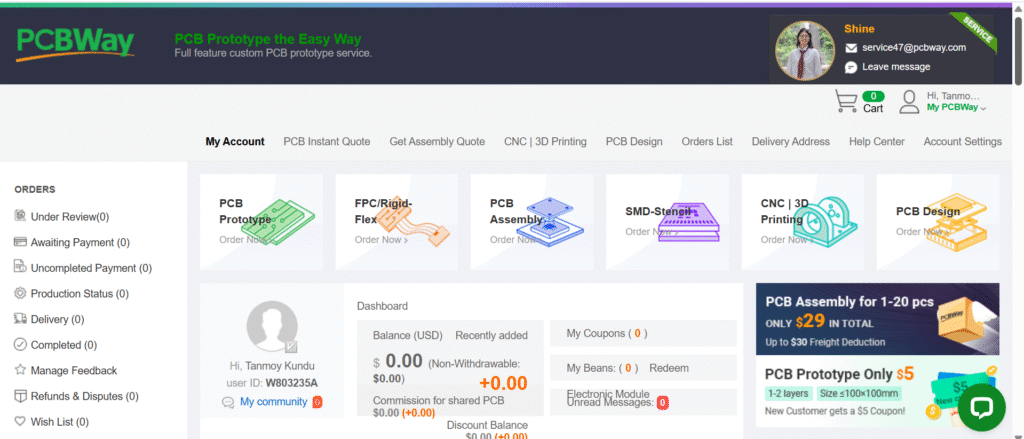
Once your PCB design is ready in KiCad, it’s time to bring your project to life by turning your digital layout into a real printed circuit board (PCB). Thanks to PCBWay, this process is fast, affordable, and super simple—even if it’s your first time ordering a PCB.
Here’s how you can do it:
Step 1: Visit PCBWay’s Official Website
This is PCBWay’s official site where makers, engineers, and hobbyists around the world get their custom circuit boards manufactured.
Step 2: Upload Gerber Files OR Use the KiCad Plugin
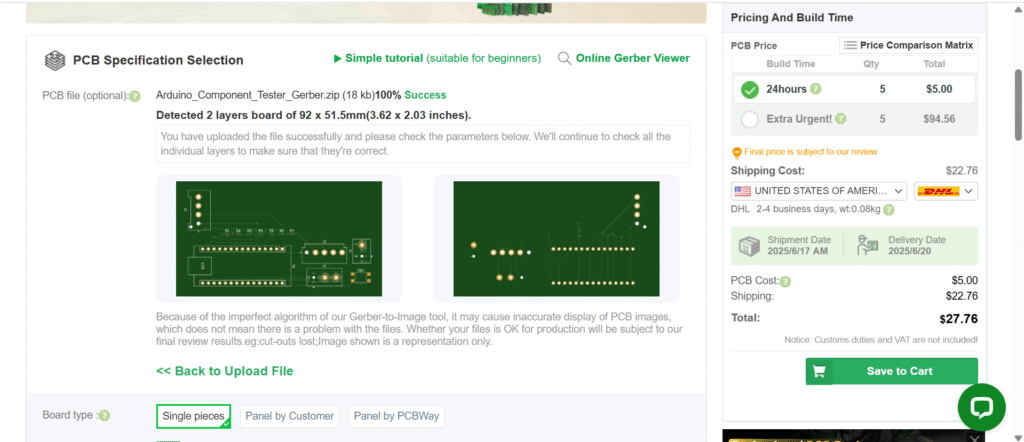
You have two options to submit your design:
- Option A – Upload Manually: Export your Gerber files from KiCad (or any PCB design tool) and upload them directly on the PCBWay website.
- Option B – Use PCBWay KiCad Plugin (Recommended): This is the easiest method. With PCBWay’s official KiCad Plugin, you can directly generate and send your Gerber files without leaving the KiCad software. No need to zip, export, or upload anything manually.
Pro Tip: You can find the plugin inside KiCad’s Plugin Manager or download it from PCBWay’s website. Once installed, click on “PCBWay Order” and follow the steps to place your PCB order directly.
Step 3: Select PCB Specifications
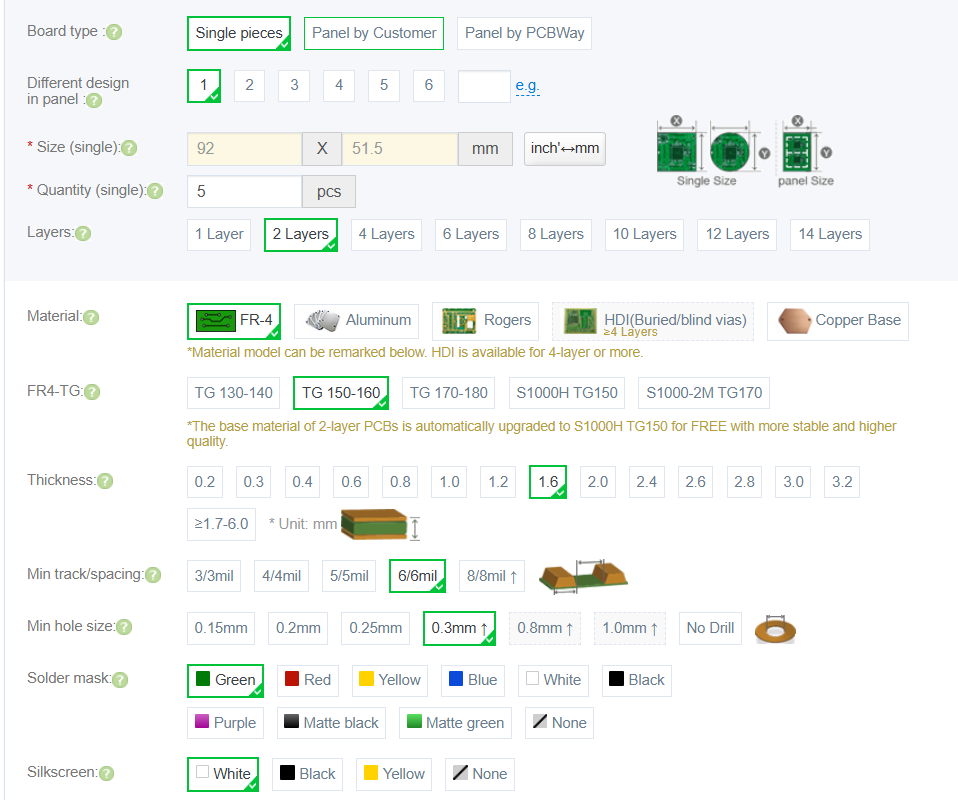
After uploading or sending your design, choose the PCB options that match your project needs. For most home automation DIY projects like this one, the following specs are ideal:
- PCB Type: 2-layer
- Thickness: 1.6mm (standard)
- Material: FR4
- Solder Mask Color: Green (or choose from red, black, blue, white, etc.)
- Surface Finish: HASL (or ENIG for gold finish)
- Dimensions & Quantity: Based on your board layout and how many boards you want
PCBWay shows you an instant price estimate so you’ll know exactly what you’re paying.
Step 4: Review and Place Your Order
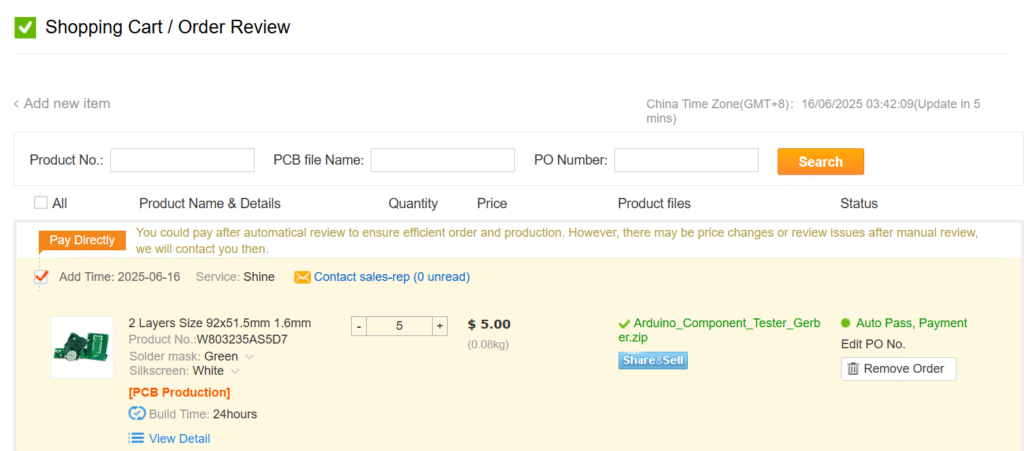
After selecting the specs:
- Review your order
- Enter your shipping address
- Make the payment (PayPal, Credit/Debit Card, etc.)
Once confirmed, PCBWay starts working on your order immediately.
Step 5: Fast Manufacturing and Delivery
PCBWay typically manufactures and ships PCBs within 24 to 48 hours. Depending on your chosen shipping option, the boards usually arrive in 5–10 working days.
When your PCBs arrive, you’ll notice the quality right away:
- Smooth and shiny finish
- Accurate hole alignment
- Clean solder pads
- Professional-grade silkscreen
Whether you’re a student, hobbyist, or professional developer, PCBWay makes PCB prototyping fast, reliable, and budget-friendly.
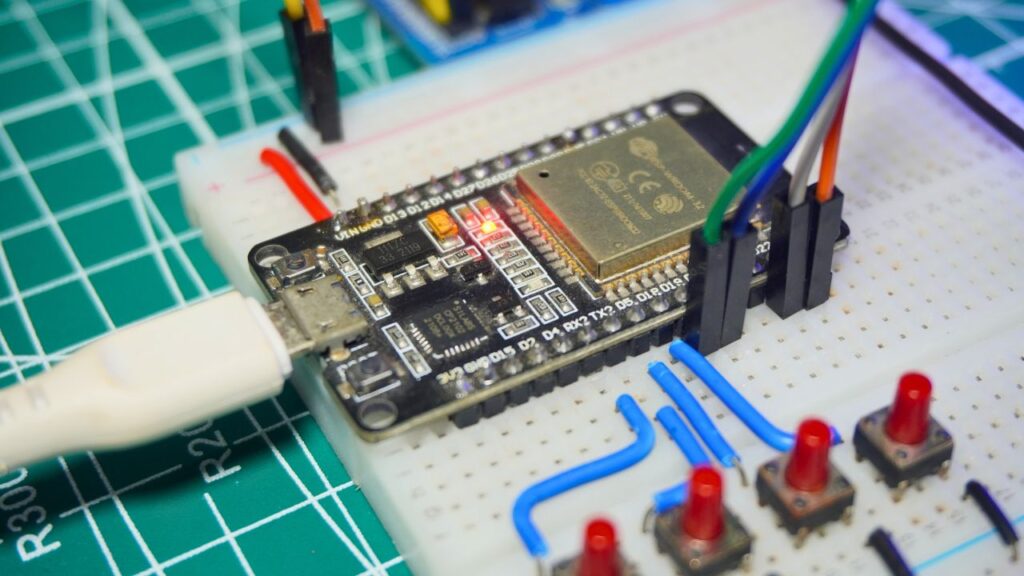
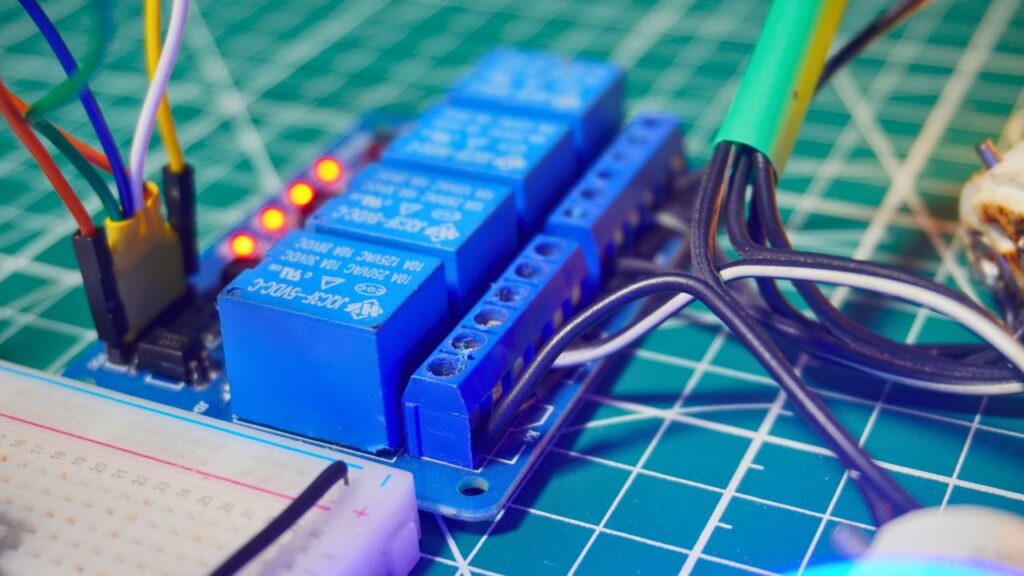
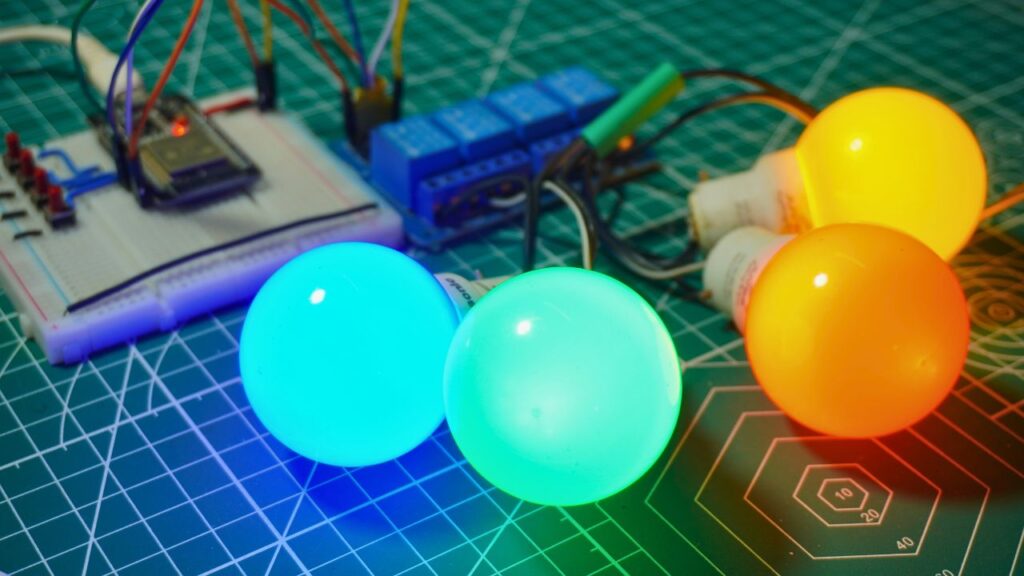
Hardware Setup
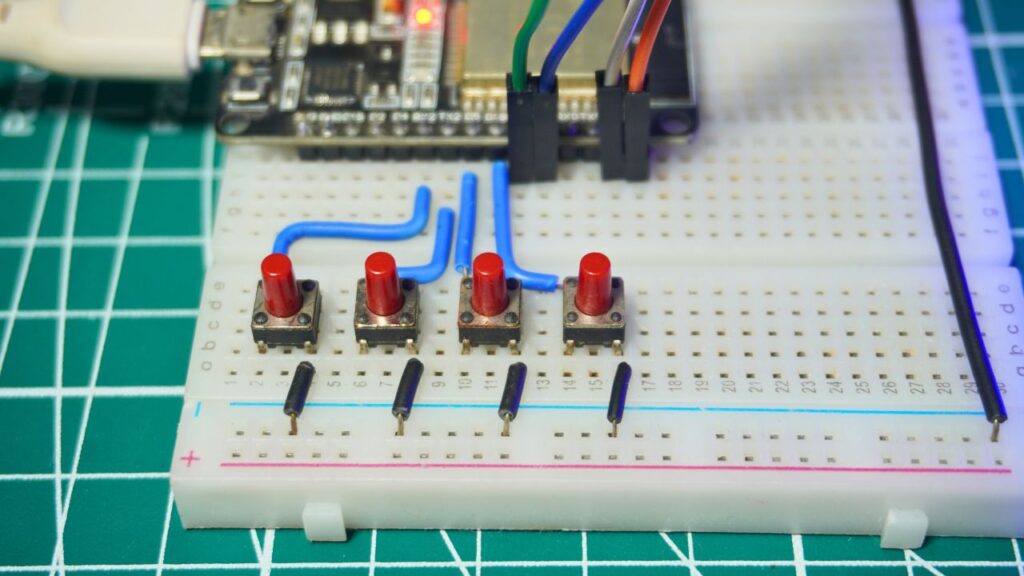
Video Output
Troubleshooting Tips
Running into issues? Don’t worry! Here are some common problems and simple solutions to help you get your ESP32 Bluetooth home automation system working smoothly:
ESP32 Not Pairing with Phone?
- Make sure Bluetooth is enabled on your phone.
- Try removing previously paired devices from your phone’s Bluetooth settings.
- Restart your ESP32 board and phone before pairing again.
- Check that the ESP32 is powered properly and the code is uploaded successfully.
Relays Not Switching?
- Double-check the power supply to the relay module. Most 4-channel relays need 5V with enough current.
- Ensure that the GND of the relay module is connected to the ESP32 GND.
- If using a transistor or optocoupler relay, check your driver circuit or jumper settings on the relay board.
- Confirm if your relay is active LOW or active HIGH, and adjust the code (
LOWto turn ON orHIGHdepending on your relay).
Bluetooth Commands Not Working?
- Use
Serial.println(data);inside your code to print received characters to the Serial Monitor for debugging. - Check if the Bluetooth terminal app is properly connected to the ESP32.
- Try typing the commands manually in the app (
A,a,B,b, etc.) and observe the Serial Monitor for input confirmation.
Unexpected Behavior?
- Check for loose jumper wires if you’re using a breadboard.
- Re-upload the code and reset the ESP32 once after uploading.
- Use a multimeter to verify voltage levels if something seems off.
Tip: If your relay stays ON all the time or never turns ON, it’s most likely due to wrong logic level wiring or missing GND connections.
Advantages of Bluetooth Home Automation System
Using the ESP32 for Bluetooth-based home automation has many benefits. It’s a great choice for DIY electronics enthusiasts, especially beginners. Here’s why:
Works Offline – No Internet Needed
One of the biggest benefits is offline control. You don’t need Wi-Fi or internet to use the system. It works with just your phone’s Bluetooth, making it perfect for places with no internet connection.
Secure and Private
Bluetooth offers secure pairing, so only paired devices can control your home appliances. This adds a layer of privacy and safety.
Low-Cost Solution
The ESP32 is affordable and powerful. It has built-in Bluetooth and Wi-Fi, which saves you the cost of buying extra modules. You can build your entire system at a very low budget.
Easy for Beginners
With basic knowledge of Arduino programming, you can build this project easily. It’s a great way to learn IoT, coding, and PCB design with hands-on experience.
Easily Expandable
Once the basic setup is ready, you can add more features like:
- Temperature-based control
- Automatic light control with LDR
- Voice control with mobile app
- More relays for extra devices
This makes your system flexible and future-ready as you gain more skills.
Applications of Bluetooth Home Automation System
This Bluetooth-based home automation system using ESP32 is not just fun to build—it’s also super practical. Here are some real-world applications where it can make life easier and smarter:
Bedroom Light and Fan Control
Control your bedroom lights or fan right from your smartphone. No need to get out of bed—just press a button on your Bluetooth app!
Elderly or Disabled Assistance
Helps seniors or differently-abled individuals easily manage home appliances without needing to move around. A simple mobile app can bring more comfort and independence.
Garage or Workshop Automation
Use it in your garage or workshop where internet might not be available. Control lights, fans, or tools using Bluetooth.
Low-Cost IoT Learning Projects
This project is perfect for students and hobbyists who want to learn IoT without breaking the bank. It teaches coding, circuit design, and wireless control in one go.
Office Cubicle Personal Control
Create your own personal control panel at your desk to operate a desk fan, light, or USB-powered device—makes your workspace smart and personalized.
FAQs – ESP32 Bluetooth Home Automation System
Got questions? Here are the most commonly asked questions about this Bluetooth home automation project using ESP32:
No. This system uses Bluetooth, so it works completely offline. You only need your smartphone to send commands directly to the ESP32.
Yes, you can build it on a breadboard. But for long-term use, a custom PCB is highly recommended. It makes the project more reliable, compact, and professional. You can easily get one made using PCBWay.
The ESP32 has many GPIO pins, so you can control multiple appliances. With expansion, you can easily control 4, 8, or even more devices using relays.
PCBWay offers very affordable pricing. You can get 5 high-quality PCBs for as low as $5. The delivery is fast and the quality is top-notch.
It’s easy! Just follow these steps:
Open KiCad
Go to Tools → Plugin and Content Manager
Search for “PCBWay Plugin”
Click Install
Conclusion
Bluetooth-based home automation using ESP32 is a perfect DIY project to bring smart tech into your home. With a simple Android phone and some relays, you can control your lights, fans, or other appliances wirelessly. By designing a custom PCB in KiCad and using the PCBWay Plugin, you can instantly turn your idea into a professional-level product. Whether you’re a student, hobbyist, or engineer, this project offers endless learning and practical value.
🔧 Ready to build your own version? Try it now and share your results with us in the comments!




Sorry but currently there have no such option to buy readymade products from our website.
I want to buy completer working model
Bluetooth Home Automation System Using ESP32 – Easy DIY Project for Effortless Smart Control
How can I purchase