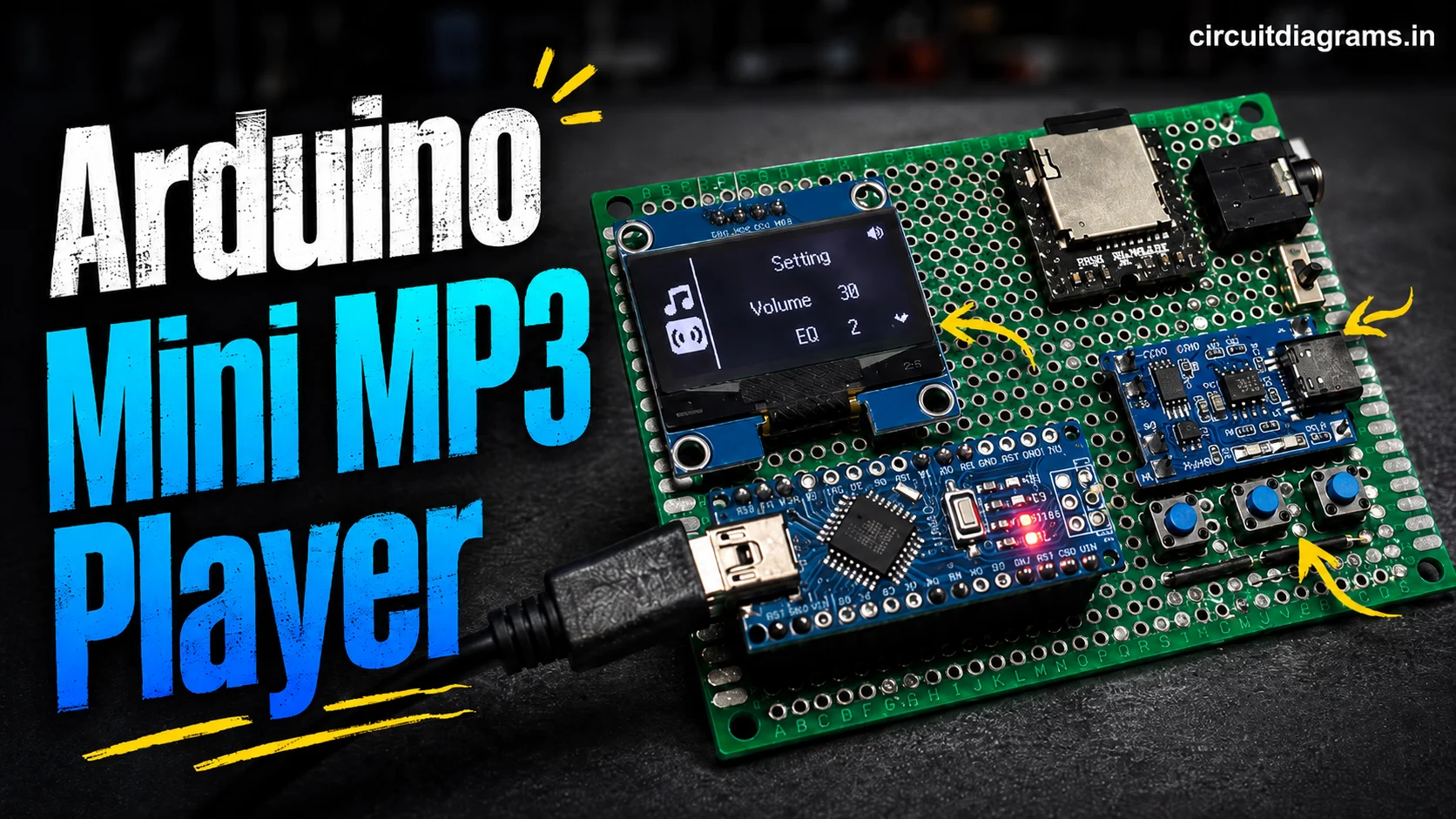
The demand for compact and customizable audio devices is rapidly increasing among tech hobbyists and music lovers. Building a DIY “Arduino Nano based mini MP3 player” is an exciting project that brings together electronics, embedded programming, and hands-on audio engineering. Using key modules like the powerful DFPlayer Mini MP3 module and a bright 1.3″ OLED display, this project allows enthusiasts to design their own portable music solution, suitable for pocket-sized entertainment and learning. With an 8GB SD card for extensive music storage, a 3.5mm headphone jack for convenience, a TP4056 charging module for safe Li-ion charging, and a reliable 3.7V lithium ion battery, this project covers every essential aspect of modern audio players.
Whether searching for “Arduino MP3 player project,” “DIY audio player with DFPlayer Mini,” or “portable music player with OLED display,” this build offers a feature-rich experience for any electronics DIYer. In addition to high-quality playback, users can enjoy menu navigation, adjustable sound settings, and robust battery power management. This beginner-friendly project guides makers through schematics, wiring, components, and step-by-step software setup, making it one of the most practical and shareable audio projects. Bring innovation to your workbench, enhance your coding skills, and enjoy music on the go with this complete Arduino Nano mini MP3 player build.
What Is It?
This project is a fully functional Arduino Nano-powered MP3 player featuring a DFPlayer Mini audio module, sharp 1.3″ OLED display for menu navigation, seamless 3.5mm audio output, and rechargeable lithium battery support via the TP4056 module. The setup ensures high-quality audio, compact design, and portability — ideal for personal music enjoyment and Arduino audio project learning.
Key Features
- Compact, portable design
- 128×64 pixel OLED display for song and menu info
- Long battery life with built-in charging (TP4056)
- Easy SD card music file transfer
- Simple navigation buttons for user control
- High-quality 3.5mm audio output
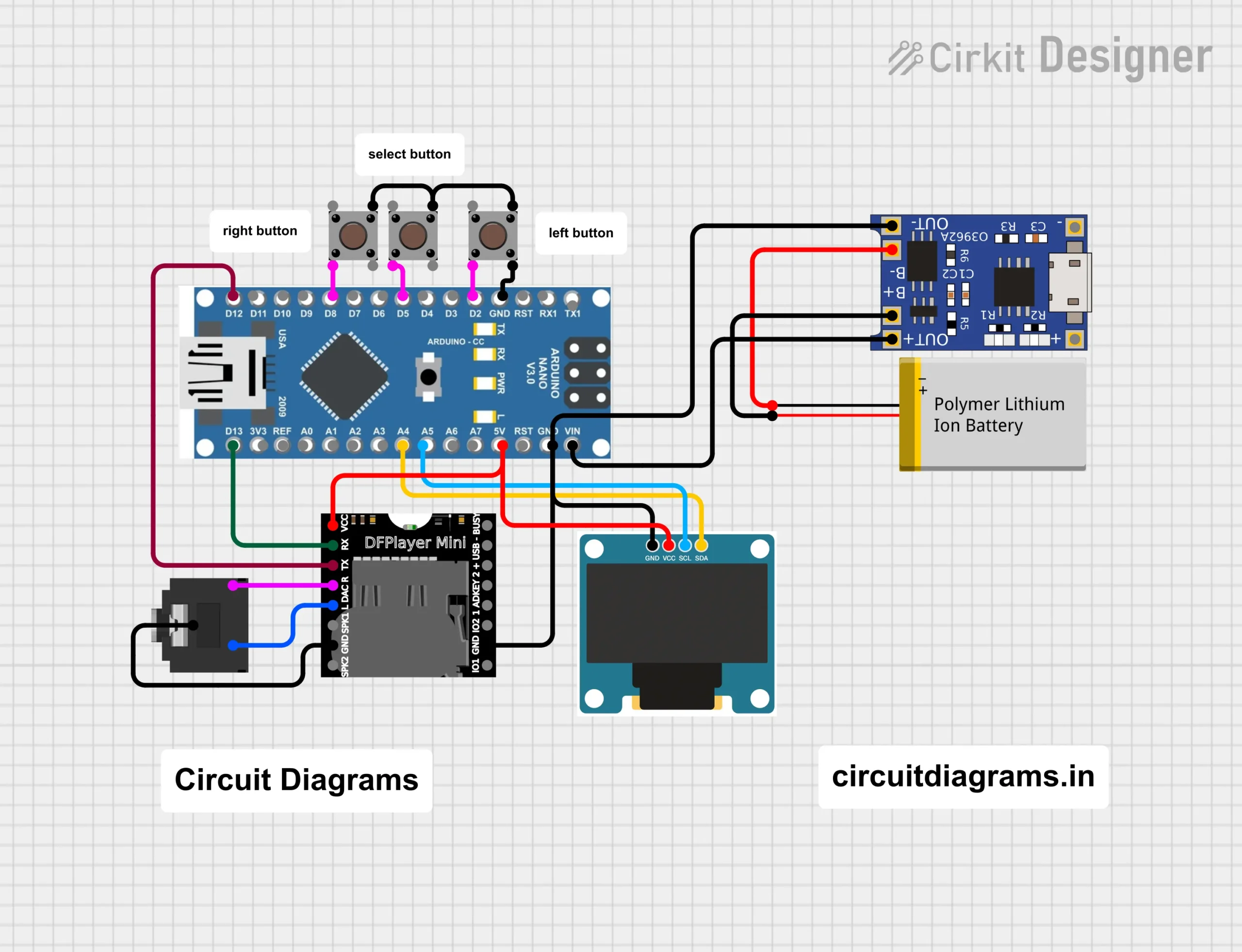
Circuit Diagram
Components Required
- 1 × Arduino Nano [https://amzn.to/43JiD0X]
- 1 × DFPlayer Mini MP3 Module [https://amzn.to/3T8CdyK]
- 1 × 1.3″ OLED Display (I2C) [https://amzn.to/4o0aWfi]
- 1 × 8GB Micro SD Card [https://amzn.to/433J7L9]
- 1 × 3.5mm Audio Socket [https://amzn.to/435lstG]
- 1 × TP4056 Charging Module [https://amzn.to/4dMMyKh]
- 1 × 3.7V Lithium Ion Battery [https://amzn.to/4p1Iqvj]
- 1 × 3.7V Lithium Ion Battery Holder [https://amzn.to/3VVCFSz]
- 3 × Push Buttons [https://amzn.to/3ZeoaLO]
- 1 × Veroboard [https://amzn.to/4kT1id5]
- Connection Wires
Circuit Wiring Connections
Arduino Nano to OLED Display Connections
| OLED Module Pin | Arduino Nano Pin |
|---|---|
| VCC | 5V |
| GND | GND |
| SCL | A5 |
| SDA | A4 |
Arduino Nano to DFPlayer Mini Connections
| DFPlayer Mini Pin | Arduino Nano Pin |
|---|---|
| VCC | 5V |
| GND | GND |
| TX | D13 |
| RX | D12 |
Arduino Nano to Push Button Connections
| Push Button | Arduino Nano Pin |
|---|---|
| Left Button | D2 |
| Select Button | D5 |
| Right Button | D8 |
Audio Output
| Component | Connection Detail |
|---|---|
| 3.5mm Audio Socket | Connected to DFPlayer Mini audio output |
Power and Charging Connections
| Module/Pin | Connection Detail |
|---|---|
| TP4056 OUT+ | 5V |
| TP4056 OUT- | GND |
| 3.7V Lithium Battery | Connected to TP4056 input and battery holder |
Source Code
#include <Arduino.h>
#include <SoftwareSerial.h>
#include <DFRobotDFPlayerMini.h>
#include <U8g2lib.h>
#include <Wire.h>
#include <EEPROM.h>
#include "OneButton.h"

// Font icon data (as provided)
extern const uint8_t soundpod_icon_pack_font[350] U8G2_FONT_SECTION("soundpod_icon_pack_font") =
  "17�445633734 ��16�16�����1AA&p3412412264214310"
  "!BE2101124206210 !D411!42H1021ABD102542TL320 �BZ34"
  "$30117202<H362 311203$1720220y20204310203 D364!362 10QH210BB"
  "24224220421042D24!2421021E210(BD21422122032122020205204($D!!12"
  "112217A210<10B344A204217222<H362 311203$10�C17310`221p42T210"
  "PS205701�D14310`221p342304324'�E12303x221222205220�F13303p"
  "22120D4212 �G1625024022121(30422021fH2111H12214261241@10377G4I"
  "2421326124120t`261CI36<10r250330300240�J14307`221 h1411k105K"
  "15307`221202102141123d611L352042241yj21G30441124$P220@A24212"
  "1162Q210W$3142225M2410!22123L2041042&B22410QD12A201�N166"
  ")22123H102525211122�O134612212334430120611���4377377�";

const uint8_t leftButtonPin = 2;
const uint8_t selectionButtonPin = 5;
const uint8_t rightButtonPin = 8;

volatile uint8_t sMenuSelection = 2;
volatile uint8_t selection = 1;
volatile bool updateScreen = true;

// Variables
uint8_t filecounts, foldercounts;
uint8_t volume = 20, folder = 1, file = 1, eq = 0;
uint8_t batteryLevel = 0, mins = 0;
unsigned long lastBatteryRead = 0;

boolean playing = false;
boolean inSideMenuSelection = true;

OneButton PreviousBTN(leftButtonPin, true);
OneButton PlayBTN(selectionButtonPin, true);
OneButton NextBTN(rightButtonPin, true);

SoftwareSerial customSoftwareSerial(12, 13);
DFRobotDFPlayerMini myDFPlayer;

// Display object
U8G2_SH1106_128X64_NONAME_1_HW_I2C u8g2(U8G2_R0, U8X8_PIN_NONE);

void drawIcon(const uint8_t* iconName, u8g2_uint_t x, u8g2_uint_t y, uint16_t glyph) {
  u8g2.setFont(iconName);
  u8g2.drawGlyph(x, y, glyph);
}

// Centered splash screen WITH new title
void flashPage() {
  drawIcon(soundpod_icon_pack_font, u8g2.getDisplayWidth() / 2 - 12, u8g2.getDisplayHeight() - 22, 66);
  const char* title = "MP3 Player By Electro Gadget";
  u8g2.setFont(u8g2_font_glasstown_nbp_tf);
  uint8_t strWidth = u8g2.getStrWidth(title);
  uint8_t xPos = (u8g2.getDisplayWidth() - strWidth) / 2;
  u8g2.setCursor(xPos, 63);
  u8g2.print(title);
}

void setup(void) {
  Serial.begin(9600);
  u8g2.begin();
  u8g2.firstPage();
  do { flashPage(); } while (u8g2.nextPage());
  PreviousBTN.attachClick(preivousButtonClicked);
  PlayBTN.attachClick(playButtonClicked);
  NextBTN.attachClick(nextButtonClicked);

  PreviousBTN.setDebounceMs(50);
  PlayBTN.setDebounceMs(50);
  NextBTN.setDebounceMs(50);

  customSoftwareSerial.begin(9600);
  if (!myDFPlayer.begin(customSoftwareSerial)) {
    Serial.println(F("Please insert the SD card!"));
  }
  volume = EEPROM.read(0);
  if (volume > 30) volume = 30;
  eq = EEPROM.read(1);
  if (eq > 5) eq = 5;
  file = EEPROM.read(2);
  if (file >= 255) file = 1;

  delay(1000);
  myDFPlayer.volume(volume);
  delay(500);
  foldercounts = myDFPlayer.readFolderCounts();
  startFolderPlay();
}

void loop() {
  PreviousBTN.tick();
  PlayBTN.tick();
  NextBTN.tick();
  updateDisplay();
  updateDFplayer();
}

void preivousButtonClicked() {
  updateScreen = true;
  if (inSideMenuSelection && sMenuSelection < 2) sMenuSelection++;
  else if (selection < 4 && sMenuSelection == 1) selection++;
  else if (selection == 1 && volume < 30 && sMenuSelection == 2 && !inSideMenuSelection) volume++;
  else if (selection == 2 && eq < 5 && sMenuSelection == 2 && !inSideMenuSelection) eq++;
}

void nextButtonClicked() {
  updateScreen = true;
  if (inSideMenuSelection && sMenuSelection > 1) sMenuSelection--;
  else if (selection > 1 && sMenuSelection == 1) selection--;
  else if (selection == 1 && volume > 0 && sMenuSelection == 2) volume--;
  else if (selection == 2 && eq > 0 && sMenuSelection == 2) eq--;
}

void playButtonClicked() {
  if (inSideMenuSelection) {
    inSideMenuSelection = false;
    updateScreen = true;
    delay(100);
  } else if (!inSideMenuSelection && sMenuSelection == 1) {
    if (selection == 1) {
      if (file > 1) {
        myDFPlayer.previous();
        file--;
        if (!playing) playing = true;
        EEPROM.write(2, file);
      }
    } else if (selection == 2) {
      if (playing) myDFPlayer.pause();
      else myDFPlayer.start();
      playing = !playing;
    } else if (selection == 3) {
      file++;
      myDFPlayer.next();
      if (!playing) playing = true;
      EEPROM.write(2, file);
    } else if (selection == 4) {
      selection = 1;
      inSideMenuSelection = true;
    }
    updateScreen = true;
    delay(200);
  } else if (!inSideMenuSelection && sMenuSelection == 2) {
    if (selection == 1) {
      selection = 2;
      myDFPlayer.volume(volume);
      EEPROM.write(0, volume);
    } else if (selection == 2) {
      selection = 4;
      myDFPlayer.EQ(eq);
      EEPROM.write(1, eq);
    } else if (selection == 4) {
      selection = 1;
      inSideMenuSelection = true;
    }
    updateScreen = true;
    delay(200);
  }
}

void startFolderPlay() {
  filecounts = myDFPlayer.readFileCountsInFolder(folder);
  myDFPlayer.playFolder(folder, file);
  playing = false;
}

void updateDFplayer() {
  if (myDFPlayer.available()) {
    uint8_t type = myDFPlayer.readType();
    int value = myDFPlayer.read();
    switch (type) {
      case DFPlayerPlayFinished:
        if (file < filecounts) {
          file++;
          myDFPlayer.playFolder(folder, file);
          EEPROM.write(2, file);
          updateScreen = true;
        }
        break;
      default: break;
    }
  }
}

void updateDisplay() {
  if (updateScreen) {
    u8g2.firstPage();
    do {
      int ch = (sMenuSelection);
      switch (ch) {
        case 1: player(); break;
        case 2: settings(); break;
        default: Serial.println(F("Default Screen"));
      }
      updateScreen = false;
    } while (u8g2.nextPage());
  }
}

void settings() {
  sideMenu();
  topMenu();
  u8g2.setFont(u8g2_font_glasstown_nbp_tf);
  u8g2.setCursor(65, 17);
  u8g2.print(F("Setting"));
  u8g2.setFontMode(0);
  u8g2.setCursor(47, 40);
  u8g2.print(F("Volume"));
  if (selection == 1 && !inSideMenuSelection) {
    u8g2.setFont(soundpod_icon_pack_font);
    if (volume > 0) u8g2.drawGlyph(85, 40, 69);
    if (volume < 30) u8g2.drawGlyph((volume < 10) ? 100 : 105, 40, 70);
  }
  u8g2.setFont(u8g2_font_glasstown_nbp_tf);
  u8g2.setCursor(95, 40);
  u8g2.print(volume);
  u8g2.setDrawColor(1);
  u8g2.setCursor(67, 60);
  u8g2.print(F("EQ"));
  if (selection == 2 && !inSideMenuSelection) {
    u8g2.setFont(soundpod_icon_pack_font);
    if (eq > 0) u8g2.drawGlyph(85, 60, 69);
    if (eq < 5) u8g2.drawGlyph(100, 60, 70);
  }
  u8g2.setFont(u8g2_font_glasstown_nbp_tf);
  u8g2.setCursor(95, 60);
  u8g2.print(eq);
  u8g2.setDrawColor(1);
  if (selection == 4 && !inSideMenuSelection) u8g2.setDrawColor(0);
  u8g2.setFont(soundpod_icon_pack_font);
  u8g2.drawGlyph(120, 60, 71);
  u8g2.setDrawColor(1);
}

void topMenu() {
  u8g2.setFont(soundpod_icon_pack_font);
  if (volume >= 25) u8g2.drawGlyph(119, 9, 77);
  else if (volume > 10 && volume < 25) u8g2.drawGlyph(119, 9, 78);
  else if (volume <= 10) u8g2.drawGlyph(119, 9, 79);
}

void sideMenu() {
  u8g2.setFontMode(0);
  if (abs(sMenuSelection) == 1 && inSideMenuSelection) {
    u8g2.drawRBox(0, 12, 20, 21, 3);
    u8g2.setDrawColor(0);
  }
  drawIcon(soundpod_icon_pack_font, 2, 30, 76);
  u8g2.setDrawColor(1);
  if (abs(sMenuSelection) == 2 && inSideMenuSelection) {
    u8g2.drawRBox(0, 33, 20, 19, 3);
    u8g2.setDrawColor(0);
  }
  drawIcon(soundpod_icon_pack_font, 2, 52, 65);
  u8g2.setDrawColor(1);
  u8g2.drawLine(22, 0, 22, 68);
}

void player() {
  sideMenu();
  topMenu();
  u8g2_uint_t midOriginX = 64, midOriginY = 44;
  u8g2.setFontMode(0);
  u8g2.setCursor(45, 25);
  u8g2.setFont(u8g2_font_glasstown_nbp_tf);
  u8g2.print("Track : ");
  u8g2.setCursor(78, 25);
  u8g2.print(file);
  u8g2.setCursor(88, 25);
  u8g2.print('/');
  u8g2.setCursor(95, 25);
  u8g2.print(filecounts);
  if (selection == 1 && !inSideMenuSelection) {
    u8g2.drawRBox(midOriginX - 7, midOriginY - 5, 11, 9, 2);
    u8g2.setDrawColor(0);
  }
  u8g2.setFont(soundpod_icon_pack_font);
  u8g2.drawGlyph(midOriginX - 5, midOriginY + 4, 74);
  u8g2.setDrawColor(1);
  if (selection == 2 && !inSideMenuSelection) {
    u8g2.drawRBox(midOriginX + 7.5, midOriginY - 8.5, 16.5, 15, 3);
    u8g2.setDrawColor(0);
  }
  u8g2.setFont(soundpod_icon_pack_font);
  if (playing) u8g2.drawGlyph(midOriginX + 7.5, midOriginY + 7.5, 72);
  else u8g2.drawGlyph(midOriginX + 7.5, midOriginY + 7.5, 73);
  u8g2.setDrawColor(1);
  if (selection == 3 && !inSideMenuSelection) {
    u8g2.drawRBox(midOriginX + 25, midOriginY - 5, 12, 9, 2);
    u8g2.setDrawColor(0);
  }
  u8g2.setFont(soundpod_icon_pack_font);
  u8g2.drawGlyph(midOriginX + 27, midOriginY + 4, 75);
  u8g2.setDrawColor(1);
  if (selection == 4 && !inSideMenuSelection) u8g2.setDrawColor(0);
  u8g2.setFont(soundpod_icon_pack_font);
  u8g2.drawGlyph(120, 60, 71);
  u8g2.setDrawColor(1);
}Step-by-Step Software Setup
- Install Arduino IDE
Download and install the latest version of the Arduino IDE from the official website. - Add Required Libraries
Open Arduino IDE and install or add the following libraries via Library Manager or manual download:- DFRobotDFPlayerMini
- U8g2 (for OLED display)
- OneButton (for button handling)
- EEPROM (usually pre-installed)
- Connect Arduino Nano
Connect the Arduino Nano board to your PC using a USB cable. Select the correct board type (“Arduino Nano”) and COM port from the “Tools” menu. - Load the Source Code
Copy the provided Arduino sketch source code and paste it into the Arduino IDE. - Verify and Upload
Click the “Verify” button to compile the code. Fix any errors if they occur. Then, click “Upload” to flash the code onto the Arduino Nano. - Prepare the SD Card
Format an 8GB micro SD card with FAT32 file system. Copy MP3 audio files named sequentially (e.g., 001.mp3, 002.mp3) to the root directory of the SD card. - Insert the SD Card
Insert the formatted micro SD card into the DFPlayer Mini module’s SD card slot. - Power Up and Test
Power your project either via USB or the connected 3.7V lithium-ion battery with TP4056 charging module. The OLED will display the splash screen, and you can use the buttons to navigate and play music.
This setup will ensure that your Arduino Nano Mini MP3 player is ready for operation with the user interface visible on the OLED display and the audio playback from the DFPlayer Mini working correctly.
Video Tutorial
Working Principle of Mini MP3 player
The Arduino Nano based mini MP3 player operates by integrating multiple modules to deliver an efficient and user-friendly audio playback system. At its core, the Arduino Nano microcontroller acts as the brain, controlling the flow of data and user interactions. When powered on, the Arduino initializes communication with the DFPlayer Mini, which is responsible for decoding and playing MP3 files stored on the 8GB SD card.
The 1.3″ OLED display communicates via the I2C protocol, providing real-time feedback such as track number, playback status, and volume levels, giving the user a clear visual interface. User inputs are managed through push buttons connected to the Arduino, allowing navigation through tracks, play/pause functionality, and volume/equalizer adjustments.
The TP4056 charging module safely manages lithium-ion battery charging, ensuring the 3.7V battery is charged correctly and protects against overcharging. This makes the device portable and rechargeable. The audio output from the DFPlayer Mini is routed to the 3.5mm audio socket, allowing connection to headphones or speakers.
Overall, the system works by the Arduino handling user commands, managing peripheral modules, and coordinating MP3 playback seamlessly, creating a compact yet powerful mini music player.
How to Troubleshoot Mini MP3 Player?
When building and operating the Arduino Nano based mini MP3 player, common issues may arise that can be resolved with systematic troubleshooting:
- No Sound or Audio Playback Issues:
Check that the DFPlayer Mini is correctly wired to the Arduino Nano, especially the TX and RX pins. Verify the SD card is properly formatted as FAT32 and contains MP3 files named sequentially (e.g., 001.mp3, 002.mp3, 003.mp3). Ensure the volume is turned up in software and hardware connections like the 3.5mm audio socket and speakers or headphones are secure. - OLED Display Not Showing Anything:
Confirm the OLED display’s VCC and GND pins are properly connected to 5V and ground, respectively. Check the I2C lines (SCL to A5, SDA to A4) for solid connections. Verify the correct OLED library (U8g2) is installed and the correct display model is selected in the code. - Buttons Not Responding or Malfunctioning:
Double-check wiring from buttons to the Arduino Nano pins (D2, D5, D8). Ensure proper pull-up or pull-down resistors are in place if required. Verify button debounce timing in code and that the OneButton library is included and correctly implemented. - Battery Not Charging or Power Issues:
Make sure the TP4056 charging module is wired correctly with input and output terminals properly connected to the battery and power source. Check battery voltage and charging indicator LEDs on the TP4056 board for status. Replace the battery if it fails to hold charge. - Code Upload or Compilation Errors:
Ensure the correct board and COM port are selected in the Arduino IDE. Confirm all required libraries are installed and updated. Fix any syntax or library compatibility errors shown during compilation.
By methodically checking connections, correct file formats, software setup, and component health, most common problems can be quickly identified and resolved, ensuring smooth project operation.
Step-by-Step Testing
1. Power On and Circuit Overview
Connect the Arduino Nano MP3 player to USB power or the battery. Instantly, the Arduino Nano’s onboard LEDs should light up, confirming that the device is receiving power and the board is operational.
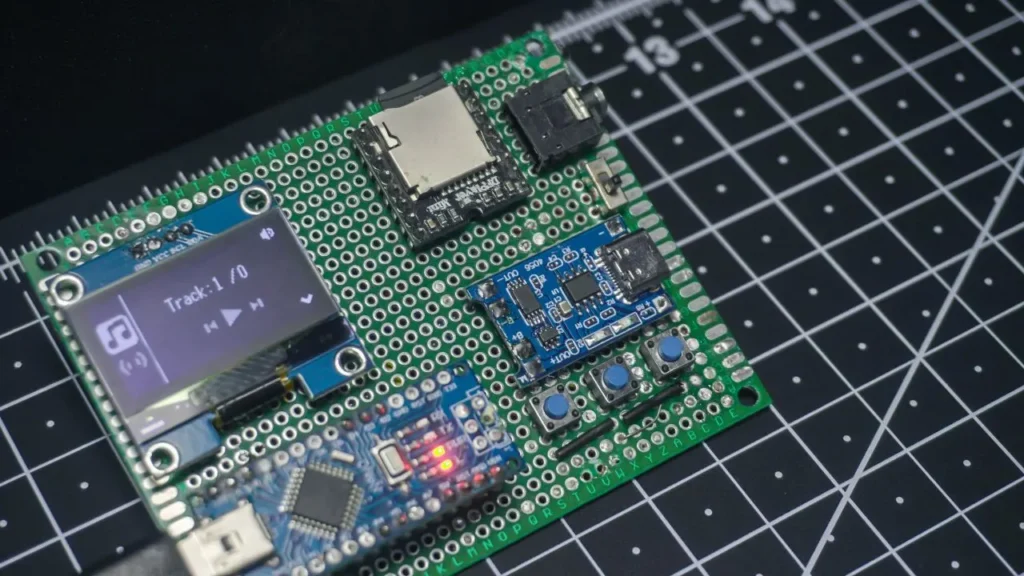
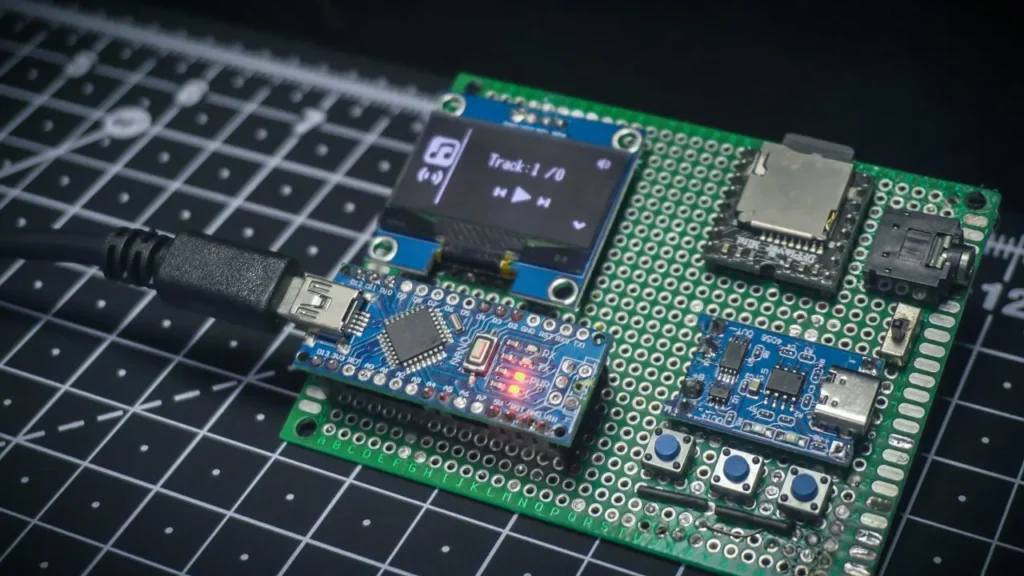
2. Hardware Placement and Component Check
Inspect the protoboard visually to ensure that all components—including Arduino Nano, DFPlayer Mini, TP4056 charging module, SD card module, buttons, and audio jack—are securely soldered and positioned as per the wiring guide.
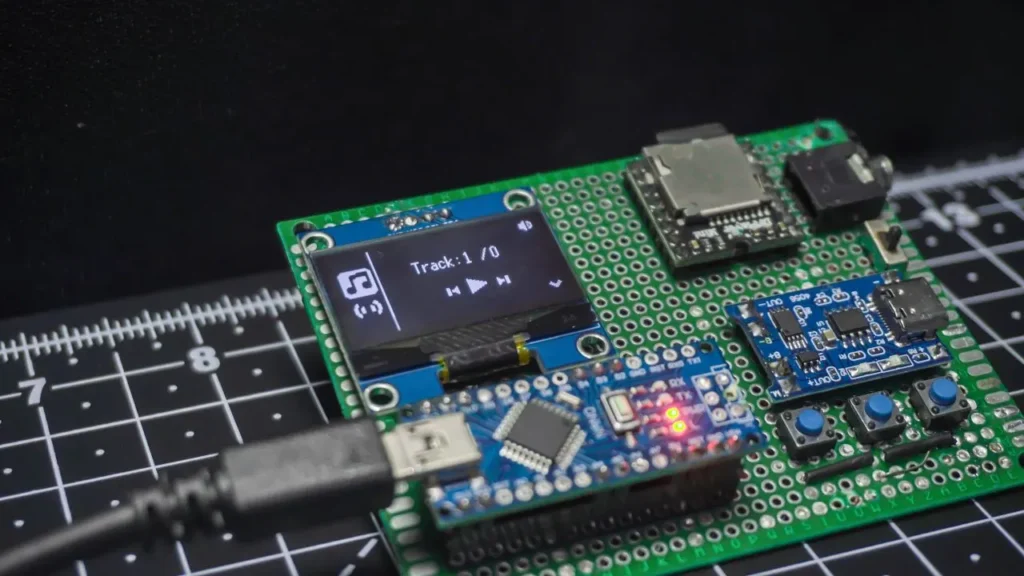
3. OLED Startup and Main Interface
After powering up, the OLED display should become active showing the main track interface (for example, “Track: 1/0” plus icons for play/pause, forward, backward, and volume). This confirms the OLED wiring and code upload are successful.
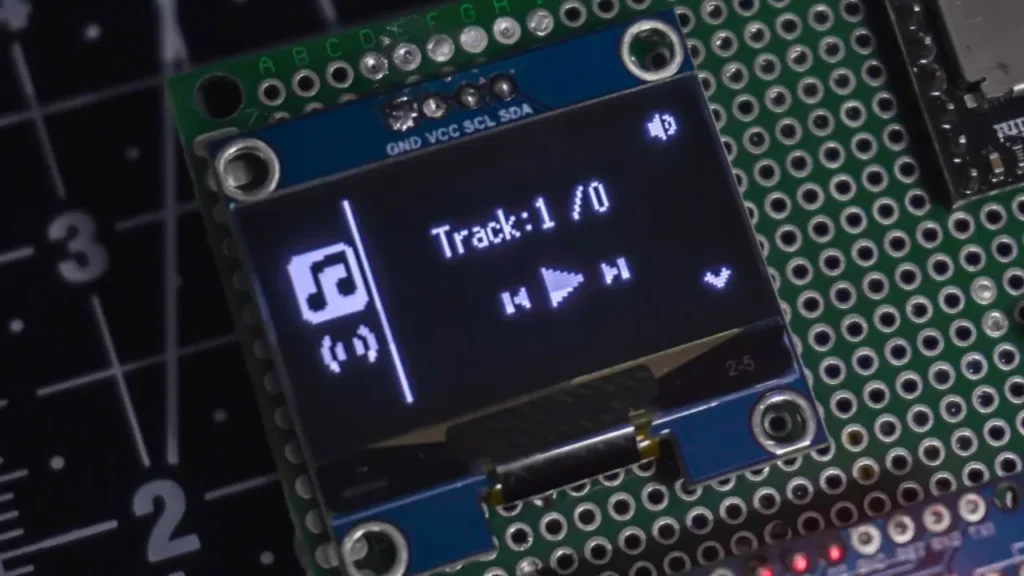
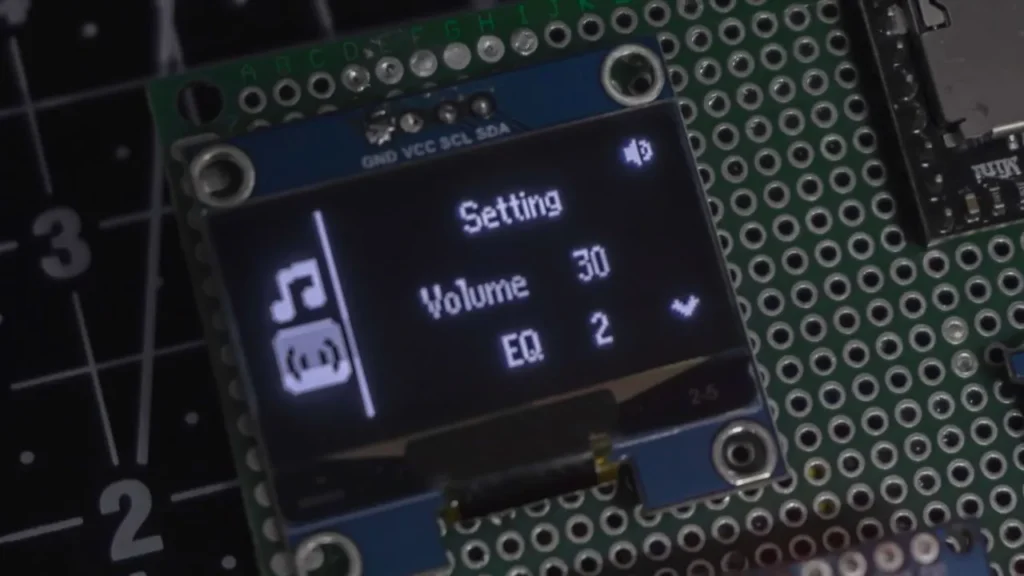
4. Settings Menu Navigation
Press the navigation buttons to enter the settings menu displayed on the OLED. Confirm the screen displays volume and EQ options, and check that adjusting these via the buttons causes the OLED to update in real-time.
5. Button and Functionality Testing
Test each of the three push buttons: left (previous), center (select/play/pause), and right (next). Observe that each press updates the track or menu display as expected and the hardware responds without lag.
6. Audio Playback and Output Test
Insert the SD card containing MP3 files. Connect a headphone or speaker to the 3.5mm audio socket. Use the buttons to select a track and ensure that audio is playing through the output, with volume changes visible on the OLED.
Key Benefits of this Arduino MP3 Player
- Compact and Portable Design:
The complete MP3 player fits onto a small protoboard and is powered by a 3.7V lithium-ion battery, making it easy to carry and use anywhere. - Customizable User Interface:
A crisp 1.3″ OLED display provides clear menu navigation, volume indication, and playback status, offering a modern and user-friendly experience. - Affordable Components:
All modules—including Arduino Nano, DFPlayer Mini, and TP4056—are budget-friendly and easily available, ensuring the project remains cost-effective. - Expandable Storage and Easy File Management:
The SD card slot supports up to 32GB (FAT32), making it simple to add or change music files as desired. - Simple Assembly and Repair:
The use of standard push buttons and through-hole soldering allows for straightforward building and easy component replacement. - Convenient Charging and Long Battery Life:
With the TP4056 charging module integrated, the player can be recharged quickly and safely, ensuring consistent and portable playback. - Educational and Skill-Building:
The project offers hands-on practice in wiring, soldering, microcontroller coding, and troubleshooting, making it ideal for learning embedded systems and DIY electronics.
Future Upgradation
- Bluetooth Audio Streaming:
Integrate a Bluetooth module (like HC-05 or DFPlayer BT) for wireless music streaming from smartphones and tablets. - On-Board Audio Amplifier:
Add a stereo audio amplifier circuit to drive external speakers directly and enhance output sound quality. - Touch or Rotary Encoder Controls:
Replace push buttons with touch sensors or rotary encoders for improved user interface and smoother control. - Larger/Colour Display Upgrade:
Upgrade to a bigger OLED or TFT colour display for richer track information and album art visualization. - Wireless File Transfer Support:
Implement Wi-Fi or Bluetooth file transfer to update music on the SD card without removing it from the device.
FAQs on Arduini Mini MP3 Player
Q: Can I use a different battery?
A: Yes, as long as it’s 3.7V and compatible with the TP4056.
Q: Does it support WAV files?
A: DFPlayer Mini primarily supports MP3 and WAV; ensure files are named correctly.
Q: Is it possible to expand storage?
A: Yes, SD cards up to 32GB (FAT32) are supported.
Q: Can volume/EQ be adjusted during playback?
A: Yes, via the navigation buttons.
Conclusion
Building an Arduino Nano based mini MP3 player using the DFPlayer Mini, OLED display, and essential supporting modules offers a rewarding and practical entry into the world of DIY electronics. This project combines accessible hardware, simple wiring, and user-friendly interface, resulting in a portable and customizable music player that highlights the power and flexibility of Arduino. Not only does it demonstrate hands-on skills in soldering, coding, and troubleshooting, but it also provides a useful, real-world gadget that can be upgraded or modified for future needs. Whether used for personal listening, learning, or as a foundation for further innovation, this DIY MP3 player stands out as a valuable project for electronics enthusiasts at any level.