An obstacle avoiding robot is one of the most exciting and beginner-friendly projects in robotics and automation. It is widely used in Arduino projects, DIY electronics, and robotics learning because it combines coding, sensors, and motor control into a practical, real-world application. These robots use ultrasonic sensors, servo motors, motor drivers, and microcontrollers like Arduino Uno to detect and navigate around obstacles without human intervention.
From autonomous cars and factory robots to drones and warehouse automation, the working principle of obstacle avoidance is at the heart of modern robotics. That’s why building one is not just fun—it’s a simple understanding how intelligent machines work.
In this DIY Arduino robot project with PCB design, we’ll use the Arduino Uno, Ultrasonic Sensor, L298N Motor Driver, Servo Motor, Buzzer, and WS2812B NeoPixel LEDs to create a robot that reacts dynamically to its environment. Along the way, we’ll also integrate PCBWay’s affordable custom PCB manufacturing and 3D printing services to give the project a professional finish. This September, PCBWay is offering free purple-ink PCBs and discounted TPU (FDM) 3D printing, making it the perfect time to prototype your circuit and chassis.
By the end, you’ll design, code, wire, and even 3D print your own obstacle avoiding robot—ready for action!
What is an Obstacle Avoiding Robot?
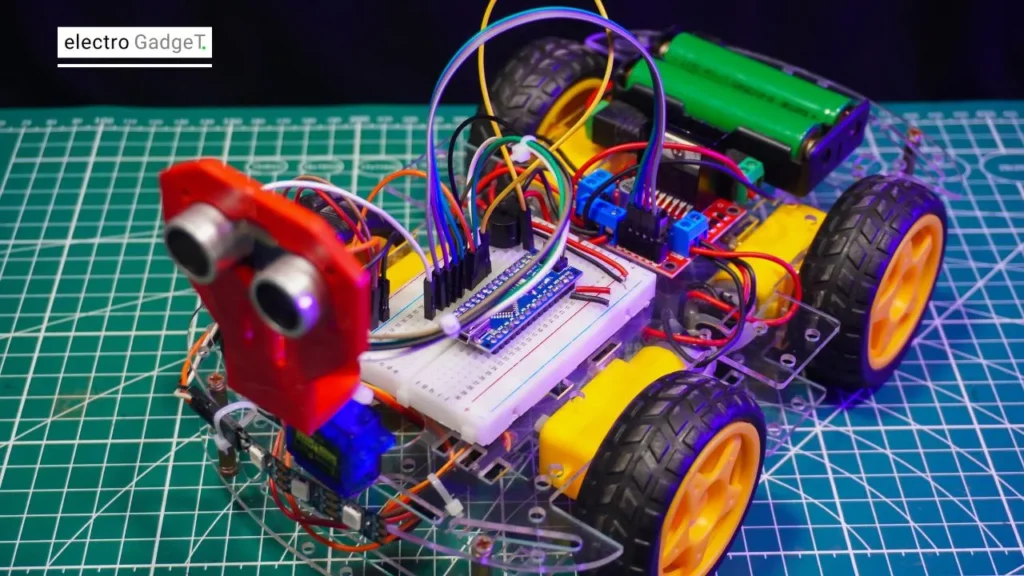
An obstacle avoiding robot is a small autonomous robot car that uses sensors to detect objects in its path and automatically changes direction to prevent collisions. In simple terms, it’s a DIY Arduino-based robot that “thinks” on its own and decides the safest route to move forward.
This project is widely popular in STEM education because it introduces beginners to the fundamentals of robotics, electronics, and programming. Students and hobbyists often build obstacle avoiding robots for robotics competitions and automation learning, as it provides hands-on experience with sensors, motor control, and real-world decision-making.
The design usually includes affordable and easily available components such as the Arduino Uno, an ultrasonic sensor for distance detection, an L298N motor driver for controlling wheels, and sometimes extra modules like NeoPixel LEDs and a Servo Motor for scanning.
Why is it so popular? Because it’s a fun way to learn how autonomous systems like self-driving cars, drones, and factory robots avoid collisions in real life. By building one, you’ll understand the working principle of an obstacle avoiding robot in a practical and interactive way.
In short: An obstacle avoiding robot is a DIY Arduino robot that detects obstacles and navigates around them to find a clear path.
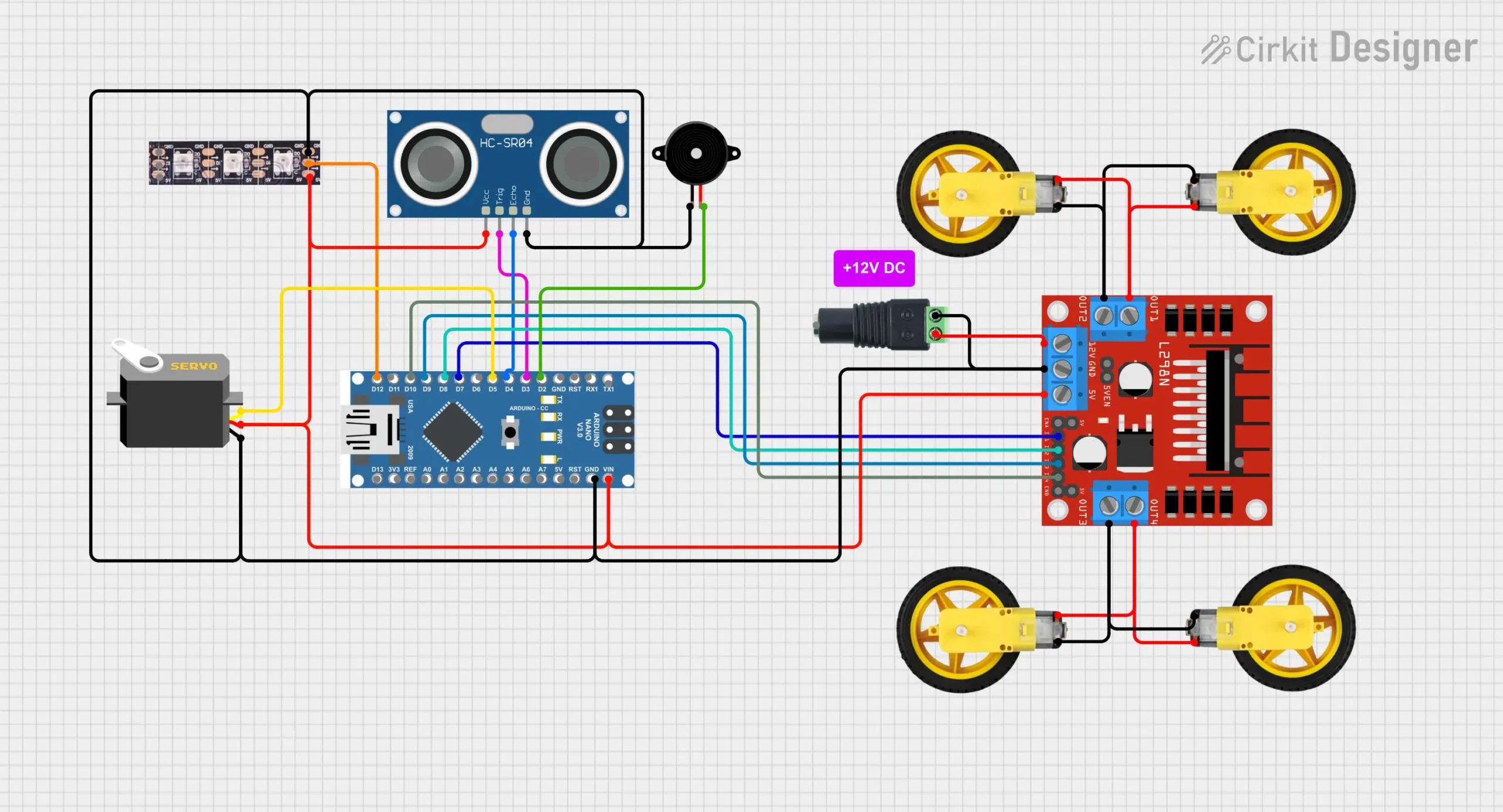
Circuit Diagram
Components Required
Core Components
- Arduino Nano
- L298N Motor Driver
- Ultrasonic Sensor (HC-SR04)
- Servo Motor
- Buzzer
- WS2812B NeoPixel LED Strip
- Robot Chassis
- 4x DC Geared Motors
- 4x Wheels
- Some Mounting Screws
- Breadboard & Jumper Wires
- 2x 3.7V Lithium Ion Battery
- Lithium Ion Battery Holder
Optional Components
- 3D Printed Robot Chassis
- Custom PCB (PCBWay purple ink edition)
Arduino Source Code
/*
   Circuit Diagrams - Obstacle Avoiding Robot
   circuitdiagrams.in
   Powered by Arduino UNO + L298N + Ultrasonic + Servo + WS2812B + Buzzer

   Premium Arduino code for smart obstacle avoiding robot
   © 2026 Circuit Diagrams. All rights reserved.
*/

#include <Servo.h>
#include <Adafruit_NeoPixel.h>

// ===================================================
//                Pin Definitions
// ===================================================

// Ultrasonic Sensor Pins
#define TRIG_PIN 3
#define ECHO_PIN 4

// Servo Motor Pin
#define SERVO_PIN 5

// Buzzer Pin
#define BUZZER 2

// WS2812B NeoPixel LED Strip
#define NEOPIXEL_PIN 12
#define NUMPIXELS 3

// L298N Motor Driver Pins
#define IN1 7    // Left Motor (Forward)
#define IN2 8    // Left Motor (Backward)
#define IN3 9    // Right Motor (Forward)
#define IN4 10   // Right Motor (Backward)

// ===================================================
//                Objects
// ===================================================
Servo myServo;
Adafruit_NeoPixel pixels(NUMPIXELS, NEOPIXEL_PIN, NEO_GRB + NEO_KHZ800);

// ===================================================
//                Helper Functions
// ===================================================

// Get distance from ultrasonic sensor (in cm)
long getDistance() {
  digitalWrite(TRIG_PIN, LOW);
  delayMicroseconds(2);
  digitalWrite(TRIG_PIN, HIGH);
  delayMicroseconds(10);
  digitalWrite(TRIG_PIN, LOW);
  long duration = pulseIn(ECHO_PIN, HIGH, 20000); // timeout after 20ms
  return duration * 0.034 / 2;
}

// Single buzzer beep when obstacle detected
void buzzerBeep() {
  digitalWrite(BUZZER, HIGH);
  delay(100);
  digitalWrite(BUZZER, LOW);
}

// Red LED alert (blink twice) when obstacle detected
void ledObstacleAlert() {
  for (int i = 0; i < 2; i++) {
    pixels.fill(pixels.Color(255, 0, 0)); // Red
    pixels.show();
    delay(150);
    pixels.clear();
    pixels.show();
    delay(150);
  }
}

// Violet scanning effect while servo rotates
void scanningEffect() {
  for (int i = 0; i < NUMPIXELS; i++) {
    pixels.clear();
    pixels.setPixelColor(i, pixels.Color(148, 0, 211)); // Violet
    pixels.show();
    delay(100);
  }
}

// Green LEDs ON (leftmost & rightmost) while moving forward
void ledRunning() {
  pixels.clear();
  pixels.setPixelColor(0, pixels.Color(0, 255, 0)); // Left Green
  pixels.setPixelColor(2, pixels.Color(0, 255, 0)); // Right Green
  pixels.show();
}

// ===================================================
//                Motor Control Functions
// ===================================================

// Stop both motors
void stopMotors() {
  digitalWrite(IN1, LOW);
  digitalWrite(IN2, LOW);
  digitalWrite(IN3, LOW);
  digitalWrite(IN4, LOW);
}

// Move forward
void forward() {
  digitalWrite(IN1, HIGH);
  digitalWrite(IN2, LOW);
  digitalWrite(IN3, HIGH);
  digitalWrite(IN4, LOW);
  ledRunning();  // Show green running LEDs
}

// Move backward
void backward() {
  digitalWrite(IN1, LOW);
  digitalWrite(IN2, HIGH);
  digitalWrite(IN3, LOW);
  digitalWrite(IN4, HIGH);
}

// Turn left
void turnLeft() {
  digitalWrite(IN1, LOW);
  digitalWrite(IN2, HIGH);
  digitalWrite(IN3, HIGH);
  digitalWrite(IN4, LOW);
}

// Turn right
void turnRight() {
  digitalWrite(IN1, HIGH);
  digitalWrite(IN2, LOW);
  digitalWrite(IN3, LOW);
  digitalWrite(IN4, HIGH);
}

// ===================================================
//                Setup
// ===================================================
void setup() {
  // Ultrasonic
  pinMode(TRIG_PIN, OUTPUT);
  pinMode(ECHO_PIN, INPUT);

  // Buzzer
  pinMode(BUZZER, OUTPUT);

  // Motor Driver
  pinMode(IN1, OUTPUT);
  pinMode(IN2, OUTPUT);
  pinMode(IN3, OUTPUT);
  pinMode(IN4, OUTPUT);

  // Servo + NeoPixel
  myServo.attach(SERVO_PIN);
  pixels.begin();
  pixels.clear();
  pixels.show();

  // Center servo at start
  myServo.write(90);
  delay(1000);
}

// ===================================================
//                Main Loop
// ===================================================
void loop() {
  long distance = getDistance();

  // Case 1: Clear path -> move forward
  if (distance > 20 || distance == 0) {
    forward();
  }
  else {
    // Case 2: Obstacle detected -> stop, beep, red blink
    stopMotors();
    buzzerBeep();
    ledObstacleAlert();

    // Scan left side
    myServo.write(150);
    delay(500);
    scanningEffect();
    long distanceLeft = getDistance();

    // Scan right side
    myServo.write(30);
    delay(500);
    scanningEffect();
    long distanceRight = getDistance();

    // Reset servo to center
    myServo.write(90);
    delay(200);

    // Choose best path based on scan results
    if (distanceLeft > distanceRight) {
      turnLeft();
      delay(500);
    } else {
      turnRight();
      delay(500);
    }
  }
}Step-by-Step Wiring Instructions
How to connect the components of an Arduino obstacle avoiding robot?
Step 1: Connect Motors to L298N OUT Pins
- Attach the left and right DC gear motors to the OUT1–OUT2 and OUT3–OUT4 terminals of the L298N motor driver.
- This creates the Arduino robot motor driver circuit for forward and backward motion.
Step 2: Connect L298N IN Pins to Arduino Digital Pins
- Wire IN1 → D7, IN2 → D8, IN3 → D9, IN4 → D10 on the Arduino Uno.
- This setup lets the Arduino control the motor direction.
Step 3: Wire the HC-SR04 Ultrasonic Sensor
- Connect Trig → D3 and Echo → D4.
- VCC → 5V, GND → GND.
- This is the key step in how to connect ultrasonic sensor to Arduino for obstacle detection.
Step 4: Attach the Servo Motor
- Connect the signal wire of the Servo S to D5.
- Red → 5V, Brown/Black → GND.
- The Servo rotates the ultrasonic sensor for scanning.
Step 5: Connect the Buzzer
- Wire the positive leg of the buzzer positive terminal to D2 and the negative leg to GND.
- The buzzer gives an alert when an obstacle is detected.
Step 6: Connect WS2812B NeoPixel LED Strip
- Connect DIN (data input) → D12 on Arduino.
- VCC → 5V, GND → GND.
- This LED strip gives a colourful visual effect for the robot.
Step 7: Provide 5V & GND Power Distribution
- Connect the Arduino 5V pin to all module VCC pins.
- Connect the Arduino GND to all module grounds.
- Use an external battery (7–12V) for the L298N motor driver 12V input to power the motors.
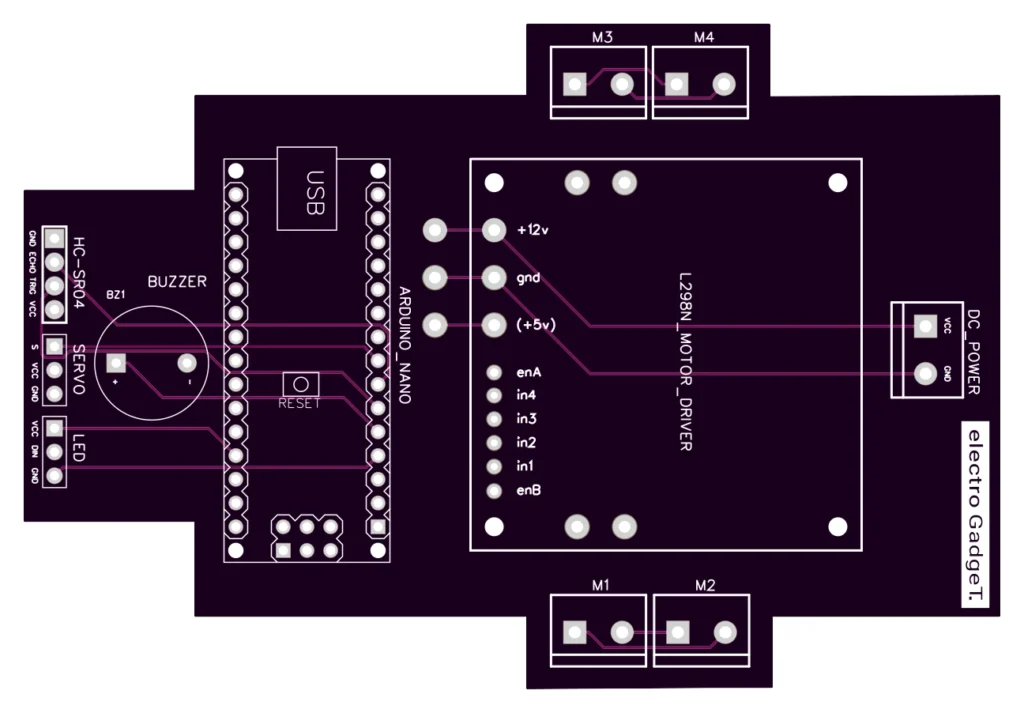
PCB Prototype for Obstacle Avoiding Robot
When building an obstacle avoiding robot, many beginners rely on breadboards and jumper wires. While this is fine for initial testing, it quickly becomes unreliable, bulky, and error-prone. Loose connections often lead to the robot malfunctioning during movement, and troubleshooting tangled wires can be frustrating.
This is why custom PCB prototyping is a smart upgrade for robotics projects. A dedicated PCB (Printed Circuit Board) provides:
- Error-free wiring – Fixed tracks prevent common mistakes.
- Compact & professional design – The robot looks like a real product.
- Beginner-friendly assembly – Components have clear positions, reducing confusion.
- Long-term durability – Perfect for robotics competitions, workshops, and STEM education.
Custom PCB (Control Board):
A PCB integrates the Arduino, motor driver, power distribution, and connectors for sensors and LEDs onto one compact, reliable board. This makes the robot more robust and easier to maintain.
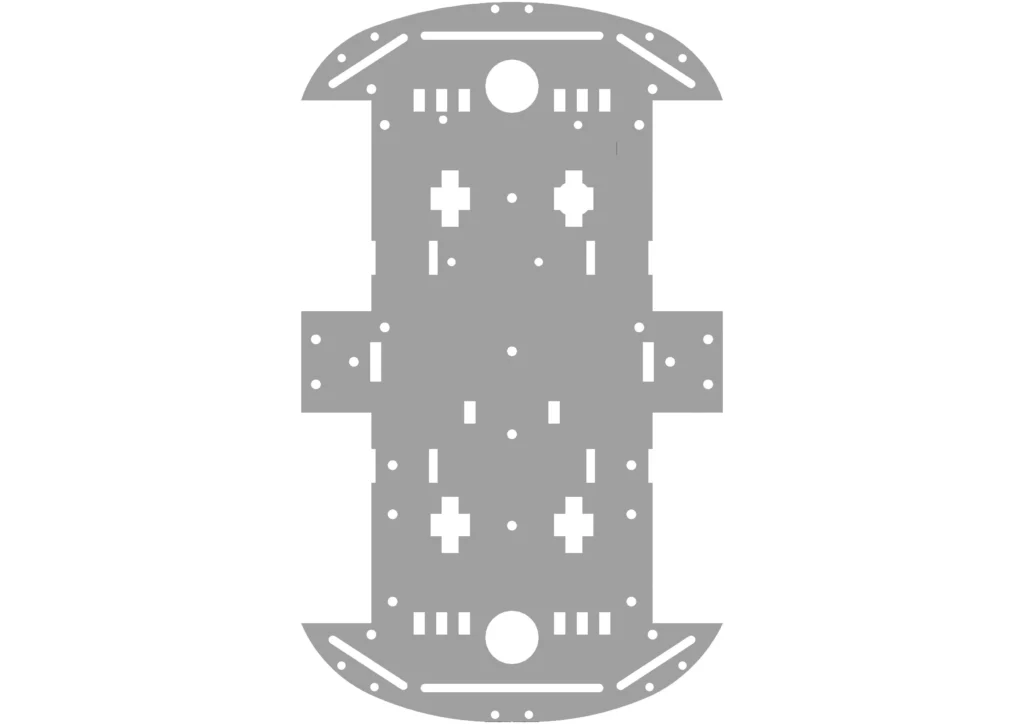
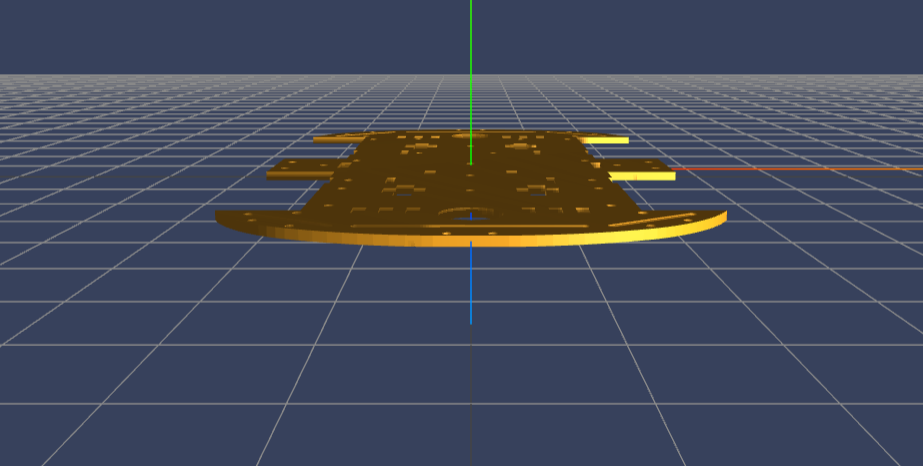
3D-Printed Chassis:
Instead of using generic toy car frames, you can 3D print a custom chassis that perfectly fits your PCB, motors, battery, and wheels. TPU (flexible material) ensures durability, shock absorption, and a sleek finish.


PCBWay September Promotion – Exclusive Deals for Makers (1st Sept to 30th Sept)
Unique Purple Ink PCBs – Aesthetic Meets Reliability


When building an obstacle avoiding robot, the circuit board is the heart of the project. PCBWay now offers a special Purple Ink PCB option (Sep 1st– Sept 30th) completely free of extra charge. This isn’t just a cosmetic upgrade—it’s a blend of aesthetics and engineering reliability.
- Premium Look: Purple solder mask gives your PCB a standout appearance, perfect for showcasing projects at competitions, classrooms, or even YouTube tutorials.
- Easy Debugging & Assembly: The deep purple contrast improves visibility of copper traces and components, making soldering and troubleshooting faster.
- Long-Term Reliability: PCBWay ensures strict process control, consistent copper thickness, and strong UV resistance so that your purple boards not only look unique but also last longer.
👉 If you’re planning to design a PCB for your robot control system, this month is the perfect time to order. With purple ink included at no extra cost, your robot PCB will look as good as it performs.
TPU (FDM) 3D Printing – Durable Robot Chassis at Discounted Rates


Alongside PCBs, PCBWay is also running a September 1st–30th promotion on TPU (FDM) 3D printing. TPU (Thermoplastic Polyurethane) is a flexible, strong, and lightweight material that’s ideal for robot chassis prototyping.
- Durability: Absorbs shocks and vibrations when your robot hits obstacles.
- Flexibility: Perfect for designing parts like wheels, bumpers, or protective housings.
- Discounts:
- 36% off on TPU prints throughout September.
- Bigger the print, bigger the discount: over 20g prints receive a deeper price cut, and prints above 64g qualify for 80% off (equivalent to 20% of original cost).
With this offer, you can build a custom robot body and chassis that perfectly fits your motors, sensors, and battery pack—without overspending.
Why Choose PCBWay for Robot Prototyping?
PCBWay is not just about PCBs—it’s a complete prototyping partner. For robotics enthusiasts, students, and professionals, PCBWay provides:
- End-to-End Manufacturing: From circuit boards to 3D-printed robot parts.
- Quick Turnaround: Get your boards and chassis delivered in days.
- Global Shipping: Reliable delivery wherever you are.
- Affordable Innovation: Monthly promotions to make projects accessible to all makers.
Whether you’re designing your robot’s control PCB or experimenting with a new chassis design, PCBWay ensures both professional quality and budget-friendly pricing.
👉 Don’t miss the September deals—upgrade your obstacle avoiding robot with a stunning purple PCB and a strong TPU chassis today!
Understanding the Components
Obstacle avoiding robots combine multiple electronic modules that work together to sense the environment and make movement decisions. In this project, the ultrasonic sensor, L298N motor driver, NeoPixel LEDs, and buzzer are the key elements that bring intelligence, control, and interactive feedback to the robot. Let’s break them down in detail.
Ultrasonic Sensor Working Principle
How does an ultrasonic sensor detect obstacles?
An ultrasonic sensor works by emitting high-frequency sound waves (typically 40 kHz) through its trigger pin. These waves travel through the air, bounce off nearby objects, and return to the sensor’s echo pin. By calculating the time taken for the echo to return, the Arduino can determine the exact distance of the object using the formula:
Distance (cm) = (Time × Speed of Sound) / 2
This makes ultrasonic sensors ideal for obstacle detection in robotics, as they provide non-contact distance measurement with reliable accuracy in the range of 2 cm to 400 cm.
What is the working principle of an ultrasonic sensor in robotics?
An ultrasonic sensor emits sound waves, measures the echo time after reflection, and calculates the distance to detect obstacles without physical contact.

L298N Motor Driver – Function & Use
The L298N motor driver is the “muscle” of the robot. Since an Arduino cannot directly supply enough current to drive DC motors, the L298N acts as an H-Bridge motor controller, allowing the robot to move forward, backward, left, or right.
- IN1 & IN2 control the left motor.
- IN3 & IN4 control the right motor.
- Enable pins regulate motor speed using PWM (Pulse Width Modulation).
By toggling these pins, the Arduino can make the robot stop, move forward, or turn. The L298N also supports dual-motor control, making it perfect for differential drive robots like obstacle avoiders.
How does the L298N motor driver work in a robot?
The L298N motor driver uses an H-Bridge circuit to control the direction and speed of DC motors, enabling forward, reverse, and turning movements.
NeoPixel LEDs & Buzzer
Adding NeoPixel LEDs and a buzzer makes the robot more interactive.
- NeoPixel LEDs:
- Green → Path is clear
- Red (blinking twice) → Obstacle detected
- Violet (scanning effect) → While robot scans surroundings
- Buzzer:
- Produces a short beep whenever an obstacle is detected.
- Provides audible feedback in addition to LED visuals.
This combination of light and sound feedback makes the robot more user-friendly and visually appealing, especially for demonstrations and STEM education projects.
Working Principle of the Obstacle Avoiding Robot
An obstacle avoiding robot works on a simple but intelligent movement logic that allows it to navigate without human control. The principle is based on real-time distance measurement using ultrasonic sensors and decision-making through microcontroller programming. In simple terms, the robot keeps moving forward until it senses an obstacle in its path. Once detected, it stops, scans for a clear route, and then turns in the safest direction.
This principle is widely used in robotics projects, self-driving car prototypes, and autonomous delivery systems because it is efficient, reliable, and easy to implement. Below is the step-by-step working principle explained clearly.
Step-by-Step Robot Movement Logic
- Forward Motion:
- Robot starts moving straight ahead when no obstacle is detected within the set distance (e.g., 20 cm).
- Obstacle Detection:
- The ultrasonic sensor sends out sound pulses and measures the reflection.
- If the distance is less than the threshold, the robot stops immediately.
- Scanning:
- The servo motor rotates the sensor left and right.
- Distance is measured on both sides to find which direction is clear.
- Decision-Making:
- If left is clear → Robot turns left.
- If right is clear → Robot turns right.
- If both blocked → Robot reverses slightly, then re-scans.
- Repeat:
- Process loops continuously, creating autonomous navigation.
Flowchart of the Working Principle

Testing the Robot
Once you’ve uploaded the Arduino code for obstacle avoiding robot and completed all wiring, it’s time to test your build. Follow these steps to ensure everything works correctly:
Step 1: Power Up
- Connect the Arduino Nano via USB or use an external 7V–12V battery connected to the L298N motor driver.
- Make sure the GND of all components (Arduino, L298N, Servo, Ultrasonic sensor, NeoPixel, and Buzzer) are connected together.
Step 2: Servo Calibration
- On startup, the servo should automatically rotate to the center position (90°).
- If it keeps shaking or not moving, check your servo wiring and power supply.
Step 3: Ultrasonic Sensor Test
- Place an object (like your hand) 20–30 cm in front of the sensor.
- The robot should stop, beep, and flash red LEDs.
- If nothing happens, check TRIG/ECHO pins and ensure the sensor faces forward.
Step 4: Motor Test
- Place the robot on the ground with free space ahead.
- If no obstacle is detected, the motors should run forward with green LEDs glowing.
- Place an object → The robot should stop, scan left and right with the servo, and then turn in the clearer direction.
Step 5: NeoPixel LED Effects
- During scanning, the LEDs should show a violet scanning effect.
- When moving forward, green running lights should glow on both sides.
Output Video
Troubleshooting & Common Issues
Building an Arduino obstacle avoiding robot can sometimes lead to minor issues. Here’s a quick guide to diagnosing and fixing them.
Motor Not Running
- Check motor driver wiring → Ensure IN1–IN4 pins are properly connected to the Arduino.
- Check jumper settings → If you are using an L298N, make sure the EN jumpers are placed (or connect to PWM pins for speed control).
- Power supply → Motors need an external power source (7V–12V), not just USB power.
Ultrasonic Sensor Not Detecting
- Verify trigger & echo pins → In code, TRIG = D3 and ECHO = D4. Make sure they match your wiring.
- Loose connections → Ensure GND is common between Arduino and sensor.
- Wrong angle → HC-SR04 should face forward, parallel to the ground.
Servo Not Rotating
- Power issue → Servos draw more current; use a dedicated 5V supply if possible.
- Check pin → SERVO_PIN = D5 in the code; confirm wiring.
- Startup calibration → On power-up, servo moves to center (90°). If not, recheck library and wiring.
FAQs – Obstacle Avoiding Robot
Q1: Why is my robot not moving forward even when no obstacle is detected?
Ensure motor driver ENA/ENB jumpers are in place. Also, check that the forward() function is HIGH/LOW configured correctly for your motor wiring.
Q2: My buzzer keeps beeping continuously. How do I fix this?
The buzzer is triggered only when an obstacle is detected. If it’s always beeping, increase the distance threshold (if (distance > 20)) or check ultrasonic sensor alignment.
Q3: Why is the NeoPixel LED not lighting up?
Make sure you have a 330Ω resistor on the DIN line, and use an external 5V supply if possible (NeoPixels are power-hungry).
Q4: Robot turns only in one direction. What’s wrong?
Swap motor connections on the L298N outputs (OUT1/OUT2 or OUT3/OUT4). Also check turnLeft() and turnRight() logic in the Arduino code.
Q5: Can I slow down the robot’s speed?
Yes. Remove the jumper on ENA/ENB pins and connect them to Arduino PWM pins (D5, D6, D9, D10). Then use analogWrite() to set motor speed.
Summary & Final Thoughts
Building an obstacle avoiding robot is more than just a fun DIY project—it’s a complete hands-on introduction to robotics, electronics, and programming. By combining sensors, a motor driver, and a microcontroller, you’ve learned how machines can sense their environment, make decisions, and move intelligently without human intervention. This project not only teaches the working principle of autonomous robots but also opens the door to advanced concepts like AI navigation, IoT-enabled robots, and smart automation systems.
For makers and students, this project offers practical benefits:
- Improves knowledge of Arduino programming
- Hands-on experience with sensors and actuators
- Helps in STEM learning, prototyping, and research
- Can be scaled into advanced robotics applications