

Introduction
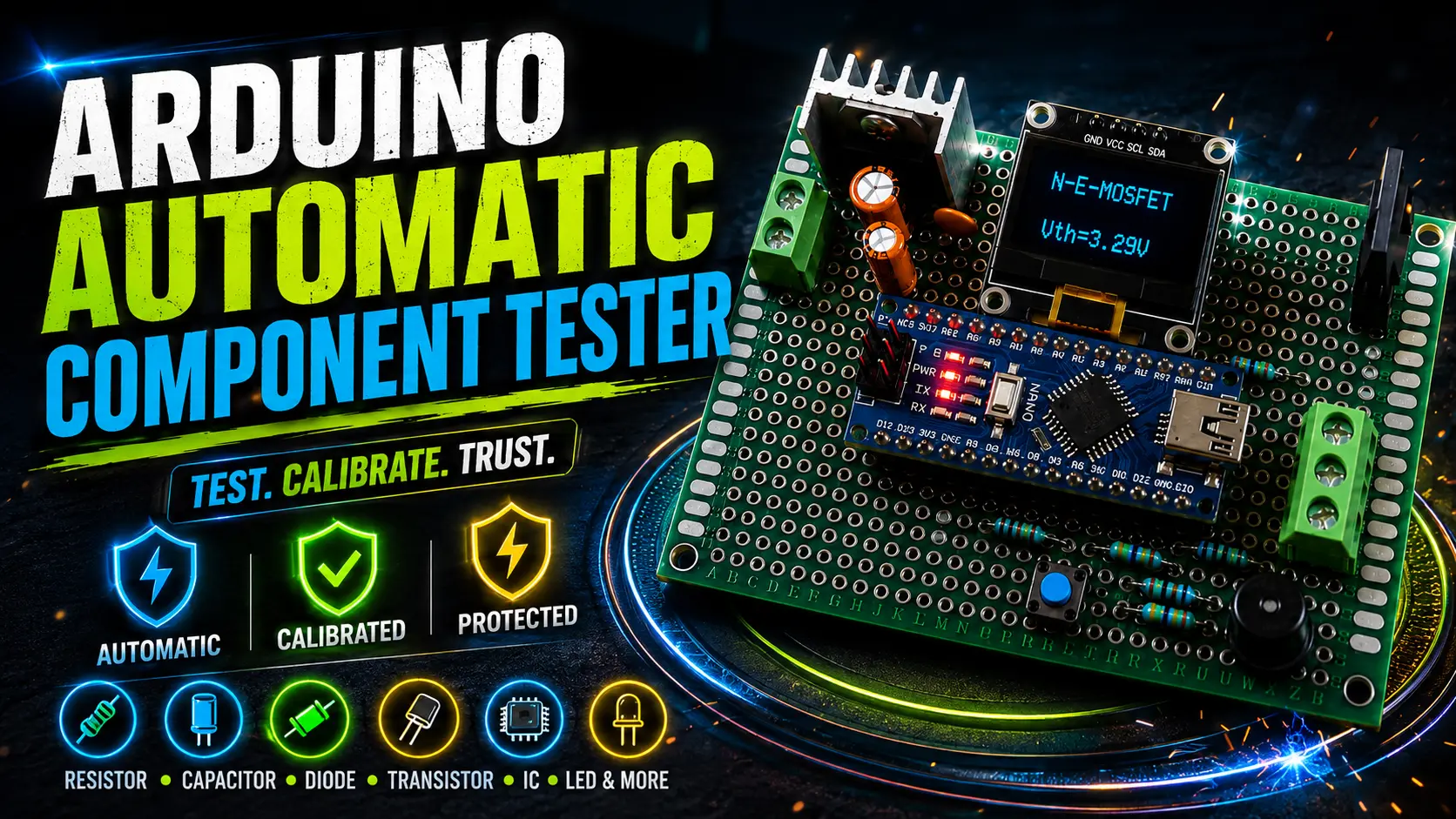
In the world of electronics hobbyists and professionals alike, quickly identifying and characterizing unknown components like resistors, capacitors, inductors, diodes, transistors, MOSFETs, and more is an invaluable capability. That’s where the Arduino Component Tester shines. By taking advantage of a simple Arduino microcontroller (such as the ATmega328P), an I2C-driven LCD display, and a handful of passive components, this project transforms your bench into a versatile, pocket-sized component analyser.
Whether you’re repairing vintage radios, prototyping PCBs, troubleshooting sensors, or simply learning the inner workings of semiconductors, this open-source tester delivers professional grade functionality without a professional grade price tag.
Thanks to PCBWay’s sponsorship, this Arduino Component Tester was not only easier to assemble but also more reliable due to the high-quality PCB. Their quick turnaround meant we could go from concept to working prototype in days, not weeks.
If you’re working on your own electronics project and need professional-grade fabrication and support, give PCBWay a try. With their combination of affordability, reliability, and extensive services, they’re a great partner for makers and engineers alike.
What is an Arduino Component Tester?
An Arduino Component Tester is a simple electronic device built around an Arduino microcontroller. It can automatically detect the type and pinout of electronic components and measure their values or characteristics. Typical components it can test include:
- Resistors
- Capacitors (including ESR measurements)
- Diodes and Zener diodes
- Bipolar Junction Transistors (BJTs)
- Field Effect Transistors (FETs)
- TRIACs and thyristors
- Inductors
Key Benefits & Features
- Multi-Function – Measures R, C, L, ESR, diode drops, transistor parameters, frequency generation.
- Self-Calibration – Automatic zeroing and reference correction via internal bandgap reference.
- Low-Power – Sleep modes and watchdog wake ensure minimal battery usage.
- I2C LCD Display – Clear 16×2 readout with menu navigation.
- Open Source & Configurable – Tweak correction factors, language, and hardware options via #define flags.
- Compact & DIY-Friendly – Uses widely available components and simple wiring.
In the following sections, we’ll walk through the entire project. From hardware assembly to coding. So you can build, customize, and master your very own Arduino Component Tester.
Circuit Diagrams

Components Required
- Arduino Nano (or equivalent) [https://amzn.to/4sfEnvA]
- 16×2 I2C LCD module [https://amzn.to/4qGBbJT]
- 1× push-button (Test/Start button) [https://amzn.to/3ZeoaLO]
- 3× test pins or 3-pin header sockets
- 3× 470kΩ resistors (R1, R3, R6)
- 3× 680Ω resistors (R2, R4, R5)
- 1× 10kΩ resistor (R7 – pull-up for button)
- Jumper Wires
- Breadboard or custom PCB
- Power source (e.g., USB, 5V regulated supply, or 7–12V via VIN)
- Optional: enclosure, banana jacks or spring-loaded clips
Source Code
This Project is Proudly Sponsored by PCBWay

Bringing an idea from schematic to a polished, functional prototype requires more than just creativity. It needs reliable tools and manufacturing support. That’s why we’re excited to have PCBWay as the official sponsor for this Arduino Component Tester project.
Why PCBWay?
PCBWay is one of the most trusted and widely used PCB manufacturing platforms in the maker, student, and engineering communities. Whether you’re a hobbyist working on DIY projects or an engineer building production-level hardware, PCBWay delivers high-quality PCBs with competitive pricing, fast delivery, and exceptional customer service.
For this project, PCBWay provided the custom PCB fabrication, which helped turn a breadboard prototype into a durable, compact, and professional-looking device. Their precision fabrication ensured signal stability, reliability, and reduced assembly time.
What PCBWay Offers:
1. Standard & Advanced PCB Fabrication

PCBWay offers both Standard and Advanced PCB Fabrication to meet varying project needs. Standard fabrication is ideal for prototyping and general electronics, supporting up to 6 layers with FR-4 material, 6 mil trace/spacing, 0.3 mm holes, and finishes like HASL or ENIG—great for fast, low-cost builds. In contrast, Advanced fabrication supports up to 40+ layers, tighter tolerances (2 mil), high-frequency materials (e.g., Rogers, Isola), microvias, impedance control, and finishes like gold plating—suitable for complex, high-reliability applications in aerospace, medical, and telecom. Both options offer quality assurance, fast turnaround, and global service.
2. PCB Assembly (PCBA)

PCB Assembly (PCBA) at PCBWay is a turnkey service that includes component sourcing, SMT and THT assembly, soldering, and quality testing. It supports single or double-sided assemblies with fine-pitch components like BGAs, QFNs, and micro BGAs. PCBWay offers both prototype and mass production PCBA, handles consigned or full BOM sourcing, and uses automated SMT lines for precision and efficiency. They provide X-ray, AOI, and functional testing, ensuring high quality. Ideal for start-ups to industrial applications, PCBWay’s PCBA service combines speed, accuracy, and flexibility with global delivery and engineer support.
3. Flexible & Rigid-Flex PCBs

Flexible and Rigid-Flex PCBs at PCBWay are designed for compact, high-performance electronics requiring flexibility and durability. Flexible PCBs use polyimide or PET substrates, allowing bending and folding for dynamic or tight-space applications like wearables, cameras, and medical devices. Rigid-Flex PCBs combine rigid and flexible layers into a single board, enabling complex 3D designs, reducing connectors, and improving reliability in aerospace, military, and high-end consumer electronics. PCBWay supports multilayer designs, controlled impedance, and advanced via structures, offering full prototyping to mass production with precision manufacturing and thorough quality testing.
4. 3D Printing & CNC Machining

3D Printing and CNC Machining services at PCBWay provide high-precision custom manufacturing for prototypes and end-use parts. Their 3D printing options include SLA, SLS, FDM, and MJF technologies, supporting materials like resins, nylon, and metal for rapid prototyping and complex geometries. CNC machining offers accurate milling and turning with materials such as aluminium, steel, brass, and plastics, ideal for parts requiring tight tolerances and durability. PCBWay ensures fast turnaround, detailed surface finishing, and strict quality control, making both services suitable for industries like robotics, automotive, aerospace, and product development.
5. Laser Cutting, Sheet Metal Fabrication & Injection Molding

Laser Cutting, Sheet Metal Fabrication, and Injection Molding at PCBWay offer versatile, high-quality manufacturing solutions for custom parts. Laser cutting delivers precise, clean cuts on metals, acrylic, wood, and plastics for enclosures, panels, and signage. Sheet metal fabrication includes cutting, bending, welding, and surface finishing, ideal for chassis, brackets, and custom housings using materials like aluminium, steel, and copper. Injection molding supports both prototyping and mass production with a wide range of plastics, ensuring high repeatability and fine details for complex parts. All services feature fast lead times, design support, and strict quality control.
6. Stencils & Assembly Tools

Stencils and Assembly Tools at PCBWay are essential for accurate and efficient PCB assembly. Solder paste stencils, available in framed or frameless types, ensure precise paste application on SMT pads, improving soldering quality and reducing rework. Made from high-quality stainless steel with laser-cut apertures, they support various PCB sizes and layouts. PCBWay also provides assembly tools such as soldering fixtures, reflow ovens, pick-and-place support, and inspection aids to streamline manual and automated assembly processes. These tools are ideal for both prototyping and production, enhancing precision, speed, and consistency in PCB assembly workflows.
The KiCad Plugin – Seamless Workflow from Design to Delivery
One standout feature that truly enhances the design experience is PCBWay’s official KiCad plugin. This plugin allows you to:
- Upload Gerber files directly to PCBWay from within KiCad software.
- Get instant pricing without leaving your EDA environment.
- Track order status right from your design tool.


This seamless integration means fewer errors, faster prototyping, and more time focusing on design rather than logistics.
Wiring Instructions:
Connect the 16×2 I2C LCD module:
- VCC → 5V on Arduino Nano
- GND → GND on Arduino Nano
- SDA → A4
- SCL → A5
Connect the Test Button (S1):
- One side → Ground
- Other side → Arduino D2 (or any free digital pin)
- Pull-up resistor (10kΩ) between D2 and 5V (if not using internal pull-up)
Test Pins:
- Test Point 1:
- Connect to D10 through 470kΩ (R1)
- Connect to D9 through 680Ω (R2)
- Test Point 2:
- Connect to D11 through 470kΩ (R3)
- Connect to D8 through 680Ω (R4)
- Test Point 3:
- Connect to D12 through 470kΩ (R6)
- Connect to D7 through 680Ω (R5)
Power:
- VIN pin can accept 7–12V DC (e.g., from battery or power jack)
- 5V pin can directly supply the LCD and any logic-level devices
- GND is common for all connections
This wiring section helps you replicate the tester on a breadboard or design a PCB. Ensure all GND connections are common, and all resistor values match the schematic for proper measurement calibration.
Software Features & Capabilities of Arduino Component Tester
Auto Component Detection Logic
- The Arduino runs a sequence of voltage and current tests across the three test points. By measuring the resulting voltage drops and identifying pin behavior, it detects whether the component is a resistor, capacitor, diode, transistor, or even a MOSFET.
- Logic compares impedance and time-domain responses to identify the type and pinout of the component.
Measurement Range and Accuracy
- Resistors: From a few ohms to several megaohms
- Capacitors: Typically from 10 nF to 5000 µF depending on test routine
- Diodes and transistors: Identified by junction threshold voltages (e.g., 0.6V–0.7V for silicon diodes)
- Uses internal ADC (10-bit) with reference voltage (AREF) for better precision
Firmware Configurability via #define Macros
- Users can modify the firmware to tweak behavior, like:
#define NO_AREF_CAPto skip external capacitor on AREF#define LANG_ENGLISHto switch display language- Adjusting test delays, timeouts, or calibration factors
- Configuration is typically found at the top of the .ino file
Multi-language Support in LCD Menus
- The firmware supports multiple display languages using
#defineflags - Typical options include:
- English
- German
- Spanish
- French
- And more
- Helps increase accessibility for international users or contributors
Detailed Component Testing Logic
One of the most impressive features of the Arduino Component Tester is its ability to identify and characterize a wide range of passive and active electronic components automatically. This section breaks down how the code and hardware work together to test components like resistors, capacitors, inductors, diodes, BJTs, MOSFETs, and more. Simplifying simple ADC readings, voltage dividers, and timing-based techniques.
How Resistance is Measured (with Reference Resistor)
Voltage Divider Method
The resistance measurement in the Arduino Component Tester is primarily based on a voltage divider setup. When a resistor is placed between any two test pins (TP1, TP2, TP3), the microcontroller applies a known voltage through one of its digital pins via a known reference resistor (typically 470kΩ as per the schematic). The voltage drop across the unknown resistor is then measured using the ADC of the Arduino on the other side of the resistor.
The formula used is:
Runknown = (Vdrop × Rref) / (Vin − Vdrop)
This allows calculation of unknown resistance values with a good degree of accuracy, especially when dealing with high-value resistors.
Correcting for Zero Offset and Temperature Drift
The tester includes auto-zeroing logic in software that periodically performs calibration by shorting test probes together and measuring internal offsets. This corrects:
- ADC offset errors
- Stray resistance in PCB traces and relay contacts
- Minor temperature-induced drift in the analog section
The calibration data is often stored in EEPROM or used temporarily for compensation during runtime.
Capacitance Measurement Technique
Charge Time Measurement Using ADC
To measure capacitance, the tester charges the capacitor using a known current path (via a resistor) and monitors the voltage rise across it over time using analogRead(). Since the voltage across a capacitor during charging follows the formula:
V(t) = Vmax × (1 – e(-t / RC))
The microcontroller can reverse-solve for C by tracking the time it takes to reach a specific voltage threshold, knowing R and timing t from micros().
Discharge Path Considerations
After measurement, the capacitor must be fully discharged before reuse or re-measurement. The tester achieves this by setting both terminals to GND or using internal discharge resistors (like the 680Ω ones in the schematic). This prevents carry-over charge from distorting future measurements.
Inductance Measurement Method
LC Resonance or Time Domain Approach
Inductance measurement is tricky with a simple Arduino, but clever time-domain tricks allow it. A typical method is to charge an inductor through a resistor and then cut the current suddenly, observing the decay or oscillation across the coil. By knowing the time it takes for the voltage to drop or oscillate, and using the formula:
L = (V × t) / I
The firmware can estimate inductance. However, it’s only reliable above 1μH and is less accurate than capacitance/resistance testing.
ESR Measurement Strategy
What is ESR and Why It Matters
ESR (Equivalent Series Resistance) is a key parameter of electrolytic capacitors. The tester applies a small AC pulse or DC pulse via a resistor and measures the voltage drop. Using Ohm’s Law, the ESR is calculated from:
ESR = Vdrop / I
Low ESR is vital in power supply circuits. High ESR indicates capacitor aging. The tester helps you detect bad capacitors even if their capacitance still measures correctly.
Diode and LED Testing
Forward Voltage Thresholds
The tester identifies diodes and LEDs by applying a small current and measuring the forward voltage drop. Standard diodes show 0.6–0.7V; LEDs vary from 1.8V (red) to 3.2V (blue/white). The Arduino detects polarity and estimates Vf using its ADC.
Zener Diode Special Handling
For Zeners, the reverse breakdown voltage is measured by applying reverse polarity with a current-limiting resistor. The tester can estimate Zener voltage if it’s below 5.1V (due to Arduino’s 5V limit). Higher-voltage Zeners are not accurately measurable without external circuitry.
BJT Testing Routine
Finding Emitter, Base, Collector
The tester uses various biasing combinations to determine if the device is an NPN or PNP bipolar junction transistor. It tries all permutations of the three pins and checks for diode like behaviour (base-emitter and base-collector junctions) to identify the configuration.
hFE Measurement Formula
Once identified, the Arduino measures the transistor’s current gain (hFE or β) by applying a known base current and measuring collector current using Ohm’s Law. The ratio gives the DC current gain:
hFE = Ic / Ib
This is shown on the LCD and helps identify whether a BJT is suitable for amplification.
MOSFET and JFET Analysis
Gate Threshold Voltage Detection
For MOSFETs, the Arduino applies voltage to the gate and measures whether current flows between drain and source. The minimum gate voltage required to conduct is the Vth (threshold voltage), which is a key parameter shown on the display.
RDS(on) and Polarity Identification
The Arduino also measures the on-resistance (RDS(on)) when the MOSFET is turned fully on. This helps verify if the part is suitable for switching applications. Polarity (N-channel or P-channel) is determined by analysing conduction direction and gate behaviour.
Calibrating Your Arduino Component Tester
Calibrating your Arduino Component Tester is essential to ensure reliable and accurate measurements across all component types—especially when testing capacitors, ESR, or semiconductors. Since component testers rely heavily on analog measurements (using the ADC), minor variations in voltage references, resistor tolerances, and ambient conditions can introduce substantial errors if left uncorrected.
Proper calibration enhances precision in detecting component values and characteristics, and can even correct for board-specific quirks like parasitic capacitance or resistance from traces and probe wires.
Importance of Calibration for Accurate Results
Without calibration, your tester may show inaccurate values due to:
- ADC offset or non-linearity
- Slight differences in Arduino reference voltage (Vref may vary from 4.8V to 5.1V)
- Resistor tolerances (even “1%” resistors may deviate slightly)
- Parasitic effects of test leads and breadboard wiring
- Temperature drift affecting capacitor and semiconductor readings
Calibration compensates for these by measuring known conditions (e.g., all test pins shorted) and adjusting internal formulas and offsets. Most Arduino testers (like the one from Markus Frejek or Karl-Heinz Kübbeler) perform automatic calibration at startup or via a menu option.
Using Auto-Reference Voltage (WITH_AUTO_REF)
If the macro WITH_AUTO_REF is defined in your code, the tester dynamically measures the internal reference voltage (bandgap) of the Arduino’s microcontroller. This is done using the internal 1.1V bandgap reference (via the ADC multiplexer) to determine the actual Vcc of the board:
Vcc = (1.1V × 1024) / ADCreading_of_bandgap
By knowing the real Vcc, the tester corrects all voltage-based measurements (like forward voltage of diodes, capacitor charging voltage, and resistance via voltage divider). This drastically improves cross-board consistency.
This option is highly recommended unless you are powering the tester from a perfectly regulated 5.00V reference.
ESR and Capacitance Correction Factors
Low-value capacitors and ESR measurements are most prone to parasitic effects such as:
- Trace inductance and resistance
- Breadboard or socket pin resistance
- Probe capacitance (~10–20pF typical with long wires)
To address this, the tester software usually performs calibration in two phases:
- Zero Capacitance Calibration:
When all pins are open or shorted, the software measures the baseline capacitance caused by the environment (Cparasitic) and subtracts it from future measurements. - ESR Baseline Measurement:
The tester checks for resistance between shorted probes and subtracts this parasitic resistance from future ESR readings.
These correction values may be stored in EEPROM or recalculated at startup depending on the firmware implementation.
Manual Calibration with Known Components
While automatic calibration works well, you can enhance precision with a manual procedure using known-good reference components:
- Connect a precision resistor (e.g., 10kΩ ±0.1%) between test pins 1 and 3
- Measure and compare the displayed resistance
- Adjust the reference resistor value in firmware if needed (RREF in code)
For capacitor calibration:
- Use a non-polarized film capacitor with known capacitance (e.g., 100nF or 1µF)
- Test it multiple times
- If it shows incorrect values consistently, tweak ADC timing or offset formulas in the code
Some testers also include a “Calibrate” option in the LCD menu that walks you through the process.
Video Tutorial
Troubleshooting Common Issues of Arduino Component Tester
Building and using an Arduino Component Tester is both rewarding and educational, but like any DIY electronics project, it can come with challenges. Below are the most common issues users face and how to fix them.
Display Not Showing Proper Characters
A common complaint is that the LCD displays garbled or incomplete characters, or stays blank altogether. This usually points to one of the following causes:
- Incorrect Wiring: Ensure the I2C lines (SDA to A4, SCL to A5 on Arduino Nano) are securely connected. A reversed cable or loose jumper can cause display failures.
- LCD Contrast: Use a small screwdriver to adjust the potentiometer on the I2C backpack (if applicable) to increase/decrease contrast until characters appear.
- Wrong Library or Address: Ensure your sketch uses the correct I2C address for the display module. You can run an I2C scanner sketch to confirm the actual address.
- Initialization Timing: Ensure the display is powered and initialized after the Arduino has booted. Some modules require a short delay after power-up.
Quick Fix:
- Run the I2C scanner sketch.
- Double-check your solder joints and jumper cable orientation.
- Verify the LiquidCrystal_I2C library is correctly included and initialized in the code.
Tester Not Detecting Components
If your tester doesn’t detect anything, even when a component is inserted correctly, the following could be wrong:
- Weak or Unpowered Arduino: The Nano might not be receiving a full 5V. Check your power source (VIN or USB).
- Damaged GPIO Pins: Repeated testing of high-power or charged capacitors may have damaged analog or digital I/O pins. Use another Arduino Nano if in doubt.
- Faulty Socket or Test Probe: Cold solder joints or broken wires on test points 1, 2, or 3 will prevent proper readings.
- Sketch Misconfiguration: Make sure your firmware matches your hardware pin configuration. If you’re using different pins or modified code, the mapping must be adjusted.
Quick Fix:
- Test continuity on all test probe paths.
- Replace Arduino Nano temporarily to rule out a damaged board.
- Use a simple known-good resistor to verify the tester is working at all.
Inaccurate Measurements and How to Fix Them
Your component tester might be working, but giving inconsistent or inaccurate readings. This often stems from:
- Uncalibrated Reference Voltages: Make sure you’ve run the self-calibration routine if your code supports it (often triggered by powering on with all probes unconnected).
- Noisy Power Supply: Voltage ripple or poor USB power from a computer may affect analog measurements. Use a clean 5V source.
- Loose Connections: Even minor movements or oxidation in jumper wires or test socket can throw off resistance or capacitance readings.
- Code Misconfiguration: Ensure the correct #define macros are set in the code. For example, incorrect LCD size or resistor values can affect computed values.
Calibration Tips:
- Ensure all probe pins are open (not connected to anything).
- Hold the test button while powering on to initiate self-calibration.
- Use a known 100nF capacitor or 1kΩ resistor to test the accuracy post-calibration.
By addressing these issues methodically, most users can restore full functionality to their Arduino Component Tester. Always check the basics: power, connections, and pin mapping before diving into code modifications.
Arduino Component Tester Test Result


How Does Arduino Component Tester Work?
The tester uses a technique called curve tracing combined with automated test scripts to apply known voltages and currents across different terminals. By observing the response, it determines the type of component and its electrical parameters. The Arduino firmware sends signals through a few analog and digital pins connected to a component under test. These pins are then sampled using the built-in ADCs and logic to determine component type and values.
Applications and Use Cases of Arduino Component Tester
Troubleshooting Old Circuits
Quickly identify faulty components in vintage or unknown circuits. The tester detects resistors, capacitors, diodes, transistors, and more, making it ideal for restoring old electronics.
Educational Tool for Learning Electronics
Perfect for students and beginners. Learn how real-world components behave, how to interface with LCDs, and how Arduino reads analog values and switches digital signals.
On-the-Go Component Identification
Compact and portable, this tester is great for fieldwork. Instantly identify unmarked or mixed components from your parts bin, staving time during prototyping or repair.
Conclusion
An Arduino Component Tester is a fun and educational project that also becomes a daily-use tool on your electronics bench. With the help of PCBWay‘s manufacturing services and their KiCad plugin, designing and assembling the project is faster and more professional than ever. Whether you’re learning electronics, fixing old gadgets, or sorting salvaged components, this tool is a must-have.






funciono perfecto , muchas gracias
Tell me your problem.
Niestety ale nie działa , proszę o pomoc.
Pozdrawiam.
It’s a very informative guides.